If you work with multiple pipelines, link each pipeline to the users, teams and categories of tags that use it. Your sales reps then only see the pipelines and tags that concern them.

A pipeline is visible to everyone unless it's linked to one user or more (even if it's the default pipeline). Same for categories of tags: a category of tags is displayed on all leads unless it's linked to one or more pipelines.
Admins are always linked to all pipelines.
A user can be linked to more than one pipeline, they will then be able to choose their default pipeline in their personal account settings. It prevails on the default pipeline set up in the Admin panel by the admin(s).
Having a default pipeline per user, means it's the pipeline new leads automatically fall into when that user creates a new lead, and it's also the one that appears first on their screen.
When you link a category of tags to a pipeline, it will appear in that pipeline. You can link a category of tags to one or multiple pipelines.
When you link a sales script to a pipeline, the shortcut to this sales script will appear in the leads in that pipeline only. You can link a sales script to one or multiple pipelines. All sales scripts you create are visible in all prospects and leads in the Actions menu.
When you link a shared inbox to a pipeline, email will be attached to the leads in that pipeline only.

Click your avatar at the top right.
Click Admin panel.
Under Sales process, click Pipeline steps.
To create a pipeline, click Create a new pipeline, enter a name and click Create.
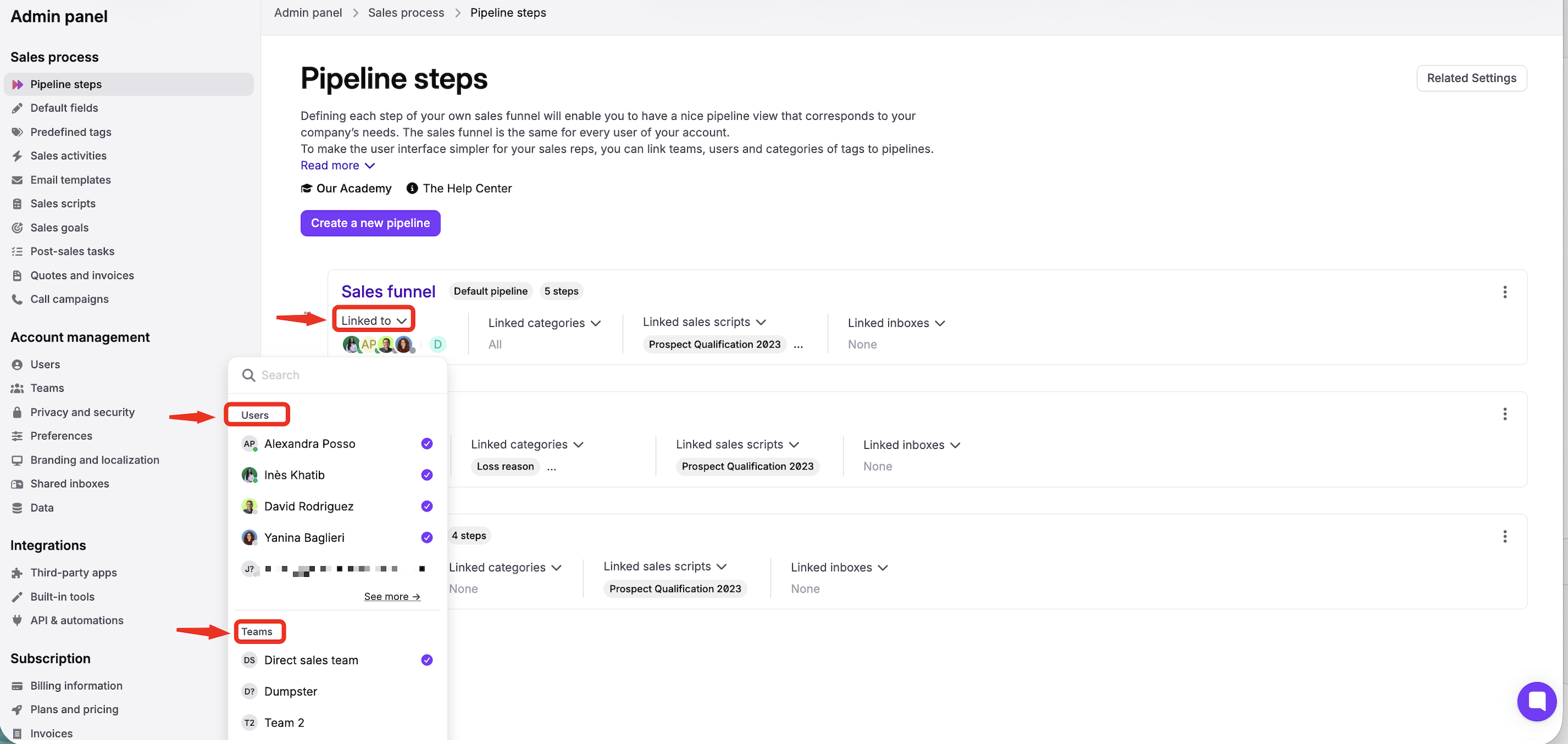
In the Linked to menu of the pipeline, select the users and teams.
In the Linked categories menu, select the categories of tags, or choose All categories or No categories.
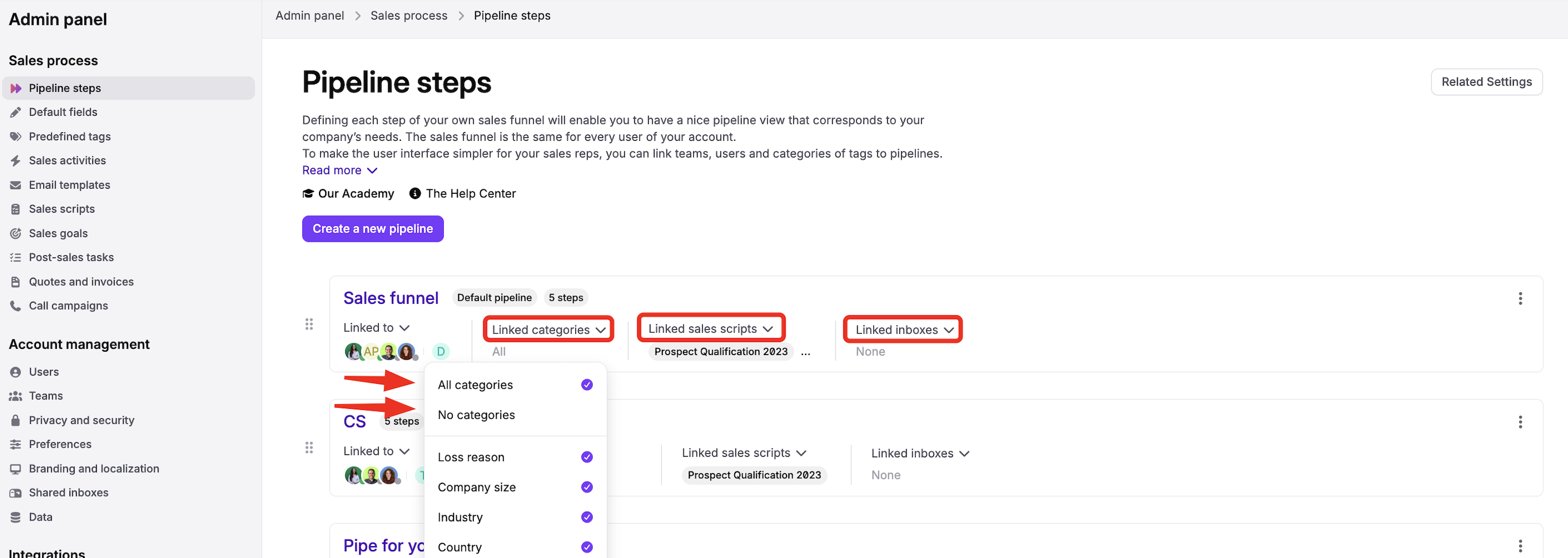
If needed, link sales scripts in Linked sales scripts and shared inboxes in Linked inboxes.
To add steps, click the pipeline name, then Add a step.
Expected result: the users and teams you linked can create leads in that pipeline and pick tags from the linked category of tags.