With noCRM, there are various intuitive ways to create leads and enrich your sales process.
If you have a contact form on your website or on a landing page, you can connect it to noCRM so that each submission automatically creates a new lead.
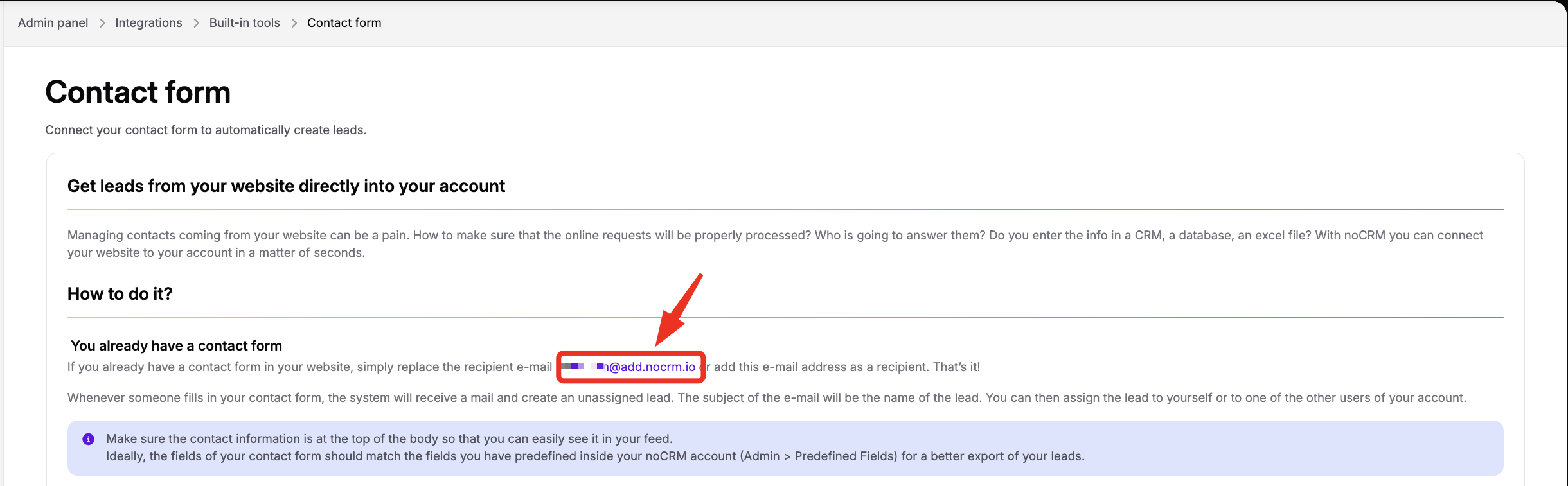
If you manage your contact form yourself, forward the submitted information by email to the email address specific to your account. Follow these steps:
Click your avatar at the top right.
Go to Admin panel > Integrations > Built-in tools > Contact form.
Copy the email address specific to your account.
Set up your contact form so that it sends each submission by email to this address.
If you use a third-party service like WuFoo or 123Contact to manage your contact form, you can use Zapier to connect your form with noCRM. You can find an example of Zapier integration in this post on our blog.
Each submission automatically creates an unassigned lead that you can access in Cold prospects > Unassigned leads. The subject of the email becomes the title of the lead, so give it a readable format, for example with the full name of the company or the contact.
Keep the contact information at the top of the text you forward, and make sure your lead fields exactly match the labels of your contact form (including upper and lower case), with the following format: Name of the field:. The colon is essential for noCRM to recognize the fields.

To create your leads for the right user, with the right tags, in the right pipeline step, etc., use the hashtags described in Create leads from your emails. You can also find your email settings in your profile, under Tools > Create a lead from an email.
Double check with the search engine in noCRM by entering one piece of data filled in the form, for example the email address. The lead may have been created correctly but directly assigned to a user, if you send the content of the form to noCRM by email. In that case, if you want unassigned leads to be created from your contact form, make sure that the sender email address is different from the email address of a user in noCRM.
Deactivate the anti-spam in Cold prospects > Unassigned leads, or leave the anti-spam activated and click the + New authorized email button to add the sender address.
If you send the content of the form to noCRM by email, check that the platform you use (WordPress, etc.) actually sends the email. Make a test by sending one to yourself first.
The sender email address is probably now used as an alias by a user of your noCRM account, so the leads are directly assigned to them. To avoid this, see the previous section.

If none of these solutions helped, contact us through the chat or at [email protected].