Writing the same email over and over again is time-consuming. Email templates let your whole team use the same wording, the same tone and the same follow-ups at each step of your sales process.
Admins can create shared templates for all users, and each user can create their own personal templates if an admin allows it.

Only admins can create shared email templates. Follow these steps:
Click your avatar at the top right.
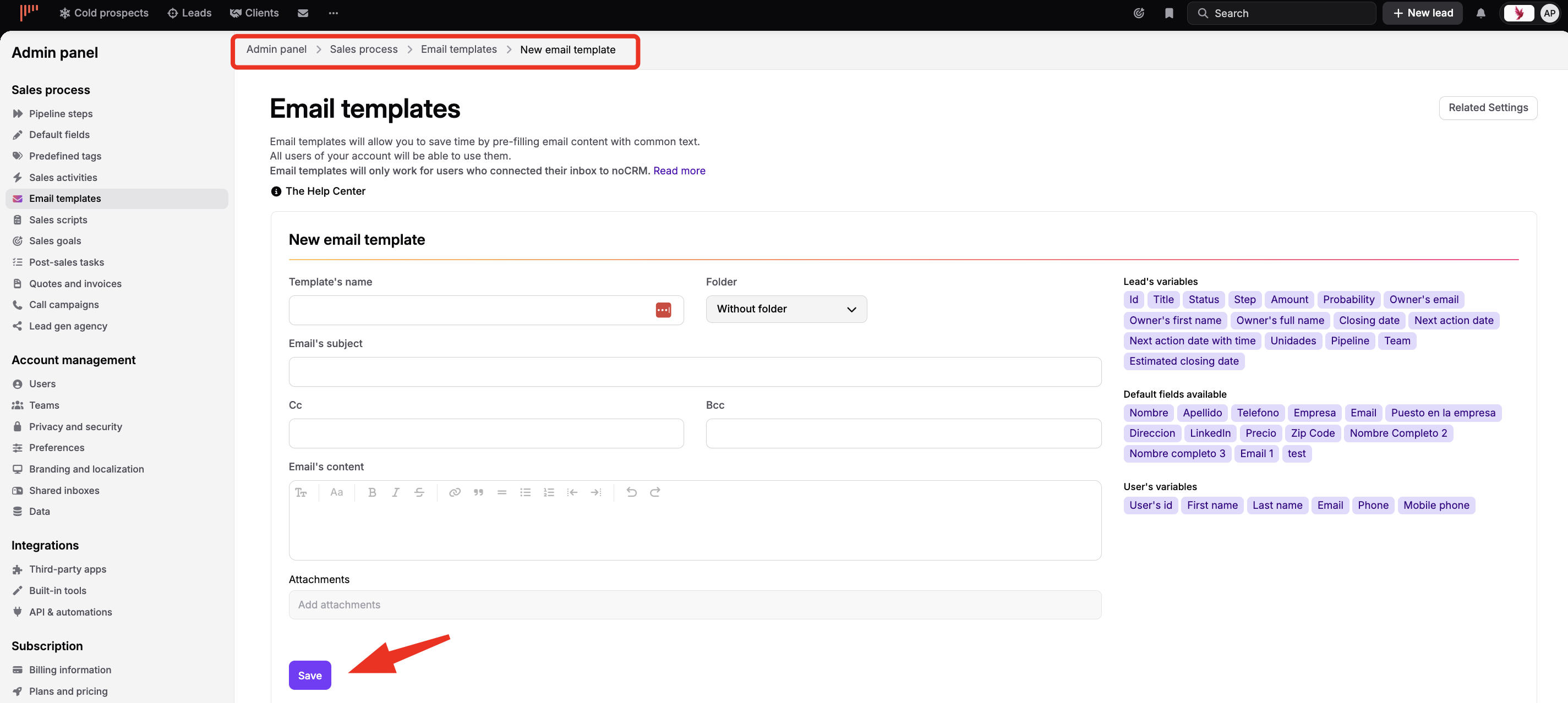
Go to Admin panel > Sales process > Email templates.
Create a new email template and fill in its fields: Template's name, Folder, Email's subject, Cc, Bcc, Email's content and Attachments.
Save the template. It is available to all users.
Users can create their own email templates only if an admin allows it. To allow it, as an admin:
Click your avatar at the top right.
Go to Admin panel > Sales process > Email templates.
Click Related Settings.
Select Allow users to create email templates.
Each user can then create their own templates: click your avatar, open your profile and go to Email settings > Email templates.
An admin can also create a template for a specific user: on the Email templates page, open the Shared templates drop-down list, select the user and create a new template for them.

You can add variables to both shared and personal templates. Variables make sure your emails always include the information you need, such as the customer's first name, the sales rep's signature or a link to a calendar.
When you edit a template, insert variables from Lead's variables, Default fields available and User's variables.

To organize your email templates, create folders. For example, one folder for your prospecting emails and another one for your lead management emails.
Create your folders, then drag and drop the corresponding templates into them.
Once you start using your templates, you can analyze their performance. To learn how, read this article.
As an admin, you can share effective personal templates with your whole sales team. Follow these steps:
Click your avatar at the top right.
Go to Admin panel > Sales process > Email templates.
In the Shared templates drop-down list, select the user whose templates you want to share.
To share all the user's templates, click Share all templates. Their folders are shared too.
To share only one or a few templates, click the Actions drop-down list on the right of the template and select Share.