Custom lead actions let you add your own actions to the Actions menu of your leads, so that noCRM fits your business requirements perfectly.
Whether you need to contact your leads on WhatsApp or Twitter, launch Google Maps searches to organize your day or feed your information system, custom actions help you work more efficiently by streamlining your sales process.

Custom lead actions are one of the built-in tools of the noCRM integrations. Only administrators of the account can create them. Follow these steps:
Click your avatar at the top right.
Go to Admin panel > Integrations > Built-in tools > Custom lead actions.
Click New action.
Choose one of the Plug & Play templates, or select Custom action to start from scratch.
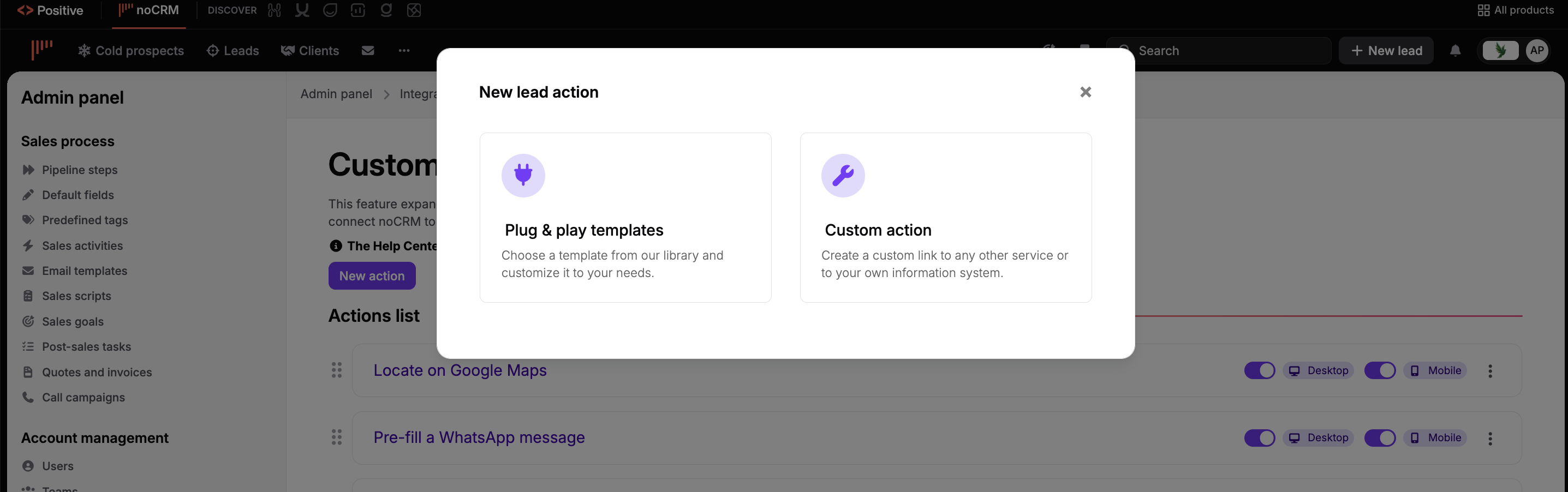
You can use the lead's variables, such as the first name or the phone number, to trigger specific actions like a call or a message.
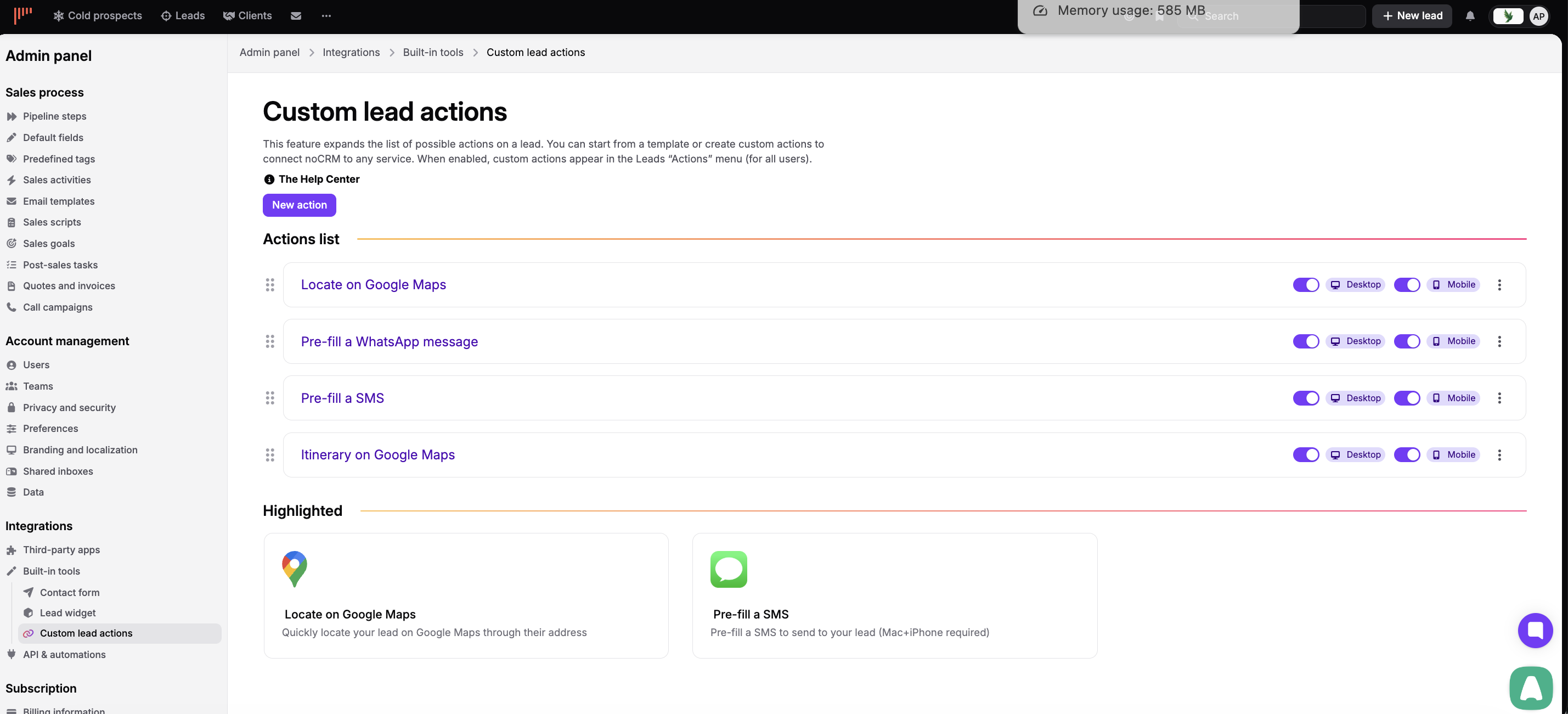
We have prepared a selection of ready-to-use Plug & Play templates for your daily tasks. With these templates, you can:
Locate a lead's address on Google Maps, to visualize their location easily.
Calculate the itinerary between your current location and that of a lead, to plan your visits and logistics efficiently.
Pre-fill a WhatsApp message, to save time and keep your communication with leads consistent (see the next section).
Pre-fill a message for posting on Twitter, to engage with your audience.
Pre-fill an SMS (only for Mac and iPhone), to reach out to leads quickly by text message.
Pre-fill a new lead to send to another noCRM account, which is useful for lead generation or if you manage several noCRM accounts. Learn how to create leads from your information system.
To pre-fill a WhatsApp message from the lead's Actions menu, the fastest method is to create a custom action. Follow these steps:
Click your avatar at the top right.
Go to Admin panel > Integrations > Built-in tools > Custom lead actions.
Click New action, then Custom action.
Then fill in the action settings:
In Action name, enter the name displayed in the lead's Actions menu, for example "WhatsApp message".
In Method, select GET.
In Address (URL), enter https://api.whatsapp.com/send.
Under Parameters, add the key phone and, as its value, select the predefined phone number field from your Admin panel. This retrieves the lead's phone number.
Add the key text, select Free input – advance usage as its value, then type the message you want to pre-fill. To insert variables, type /.
Click Save.
Here is an example configuration:
The action is then available in the Actions menu of your leads, so you can contact them quickly in a structured and consistent way.


The templates are a starting point, but the possibilities are virtually endless. Select Custom action instead of a template to build your own action.
You can choose any website or your own information system and define the variables you need, to build fully customized lead actions tailored to your requirements.
If you need help, contact our support team through the chat in your noCRM account.