Most people know Zapier as a platform that lets you automate workflows between your apps based on a pre-set event that triggers one or more actions. noCRM also offers a manual trigger in Zapier: instead of waiting for a trigger event, you fire the trigger manually, at any time, for any lead, from the lead's Actions menu.
For example, you can set up a follow-up email template in Zapier and send it to any lead in one click from the Actions menu, without going to your email provider and filling in the information.

Find out more about what you can do with the lead Actions menu in this article.


You need Gmail, noCRM and Zapier accounts. If you don't have a noCRM account, start a free trial. If you don't have a Zapier account, sign up for a free trial.
Follow these steps:
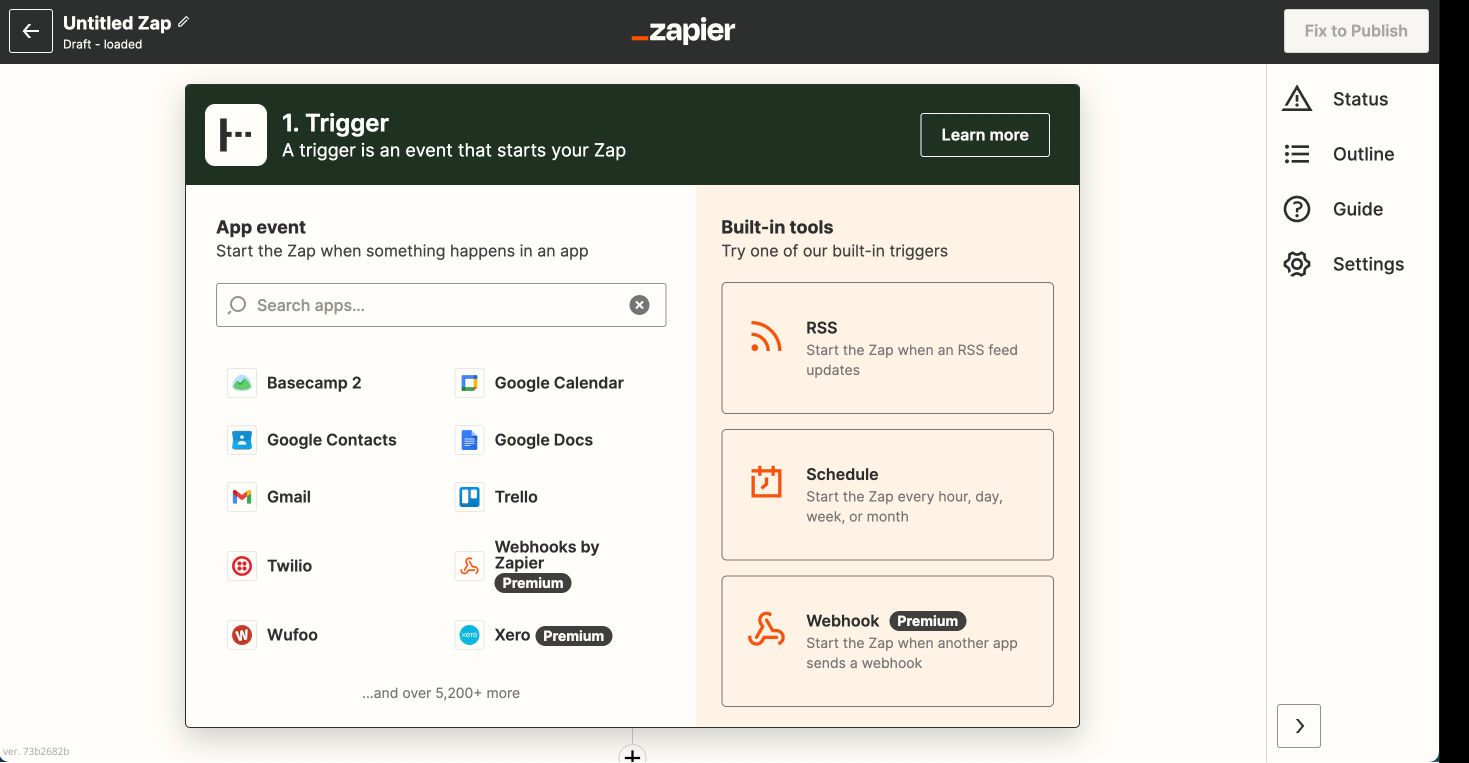
Sign into your Zapier account and click Create Zap at the top left of the page.
Choose noCRM as the trigger app.
Choose the trigger New Manual Trigger.

Enter your account name (https://AccountName.nocrm.io).
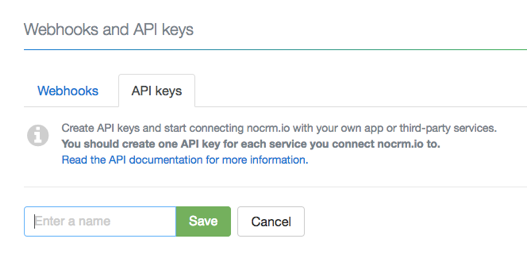
Enter your API key. To create one in noCRM, click your avatar at the top right, go to Admin panel > Integrations > API & automations > API Keys, click Create an API Key and name it.
Name your event: this name is displayed as the trigger name in the lead's Actions menu.
Click Fetch & Continue. Make sure you have recently created a lead in noCRM.

Follow these steps:
Choose Gmail as the action app.
Choose the action Send Email.
Connect Zapier to your Gmail account.
Edit the template: based on the lead you tested, select the fields Gmail must use and write your customized email in the Body field.

Test the step to finish setting up the action.
Your manual trigger is ready: you can now fire it from the Actions menu of any lead.
Watch this video to see the manual trigger in action: