Sales reps benefit from having an assistant to handle repetitive and tedious tasks. Instead of a real-life assistant, you can use automation to execute these tasks and free up your sales reps for the tasks that move the needle.
When a lead enters a step of your pipeline, you can automatically send them an email with the content of your choice, for example a meeting request or a simple follow-up email. You can set it up with the built-in Automations or with Zapier.

Follow these steps:
Click your avatar at the top right.
Go to Admin panel > Integrations > API & automations > Automations.
Click New Automation.
In Name your automation, enter a name (for example "Send an email when a lead enters the Meeting step").
In Start with the event, choose lead.step.changed.to.
Select the step that triggers the email.
In Actions in noCRM, choose send an email with the template and select the email template to send.
Click Save and activate.

Follow these steps:
Sign into your Zapier account and click Create Zap at the top left of the page.
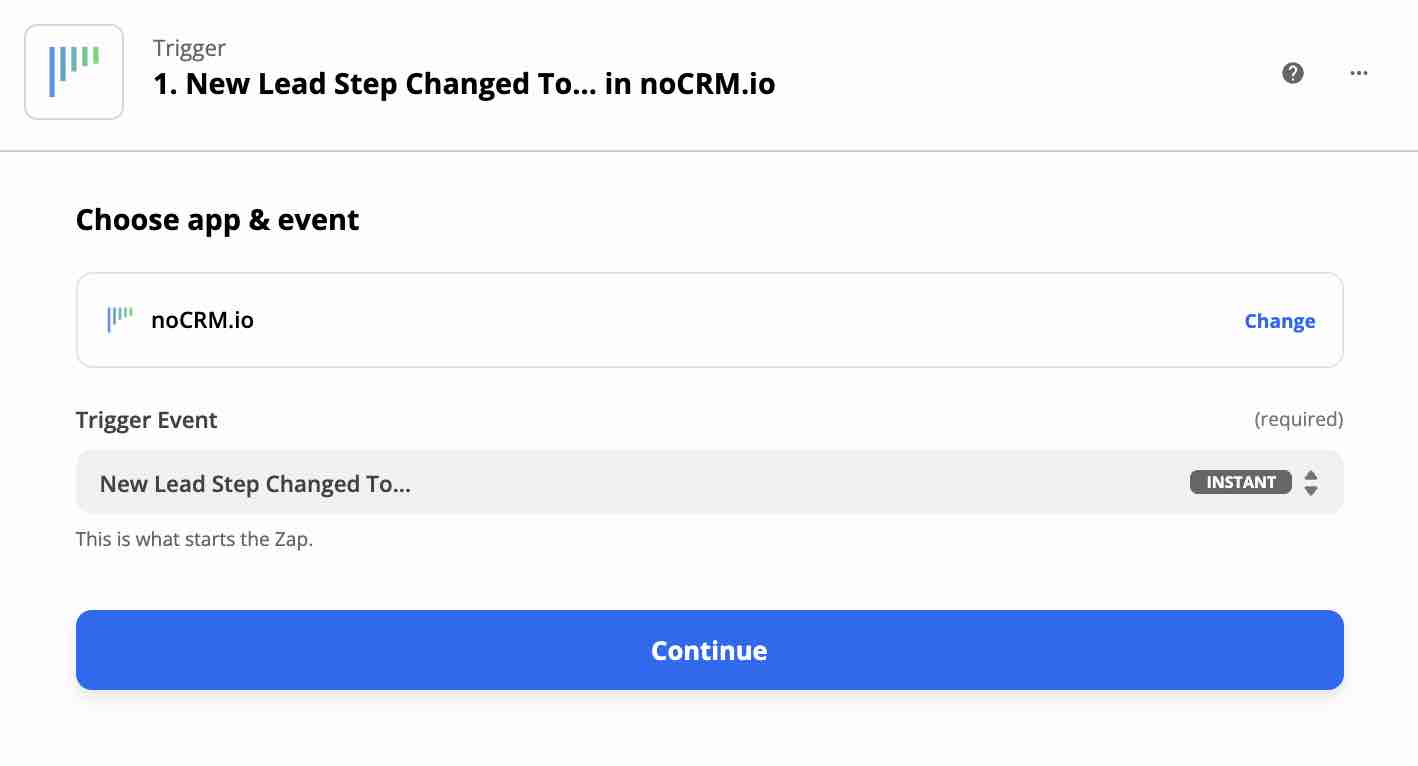
Select the noCRM app and choose the trigger event New Lead Step Changed to....
Enter your account name (https://AccountName.nocrm.io).
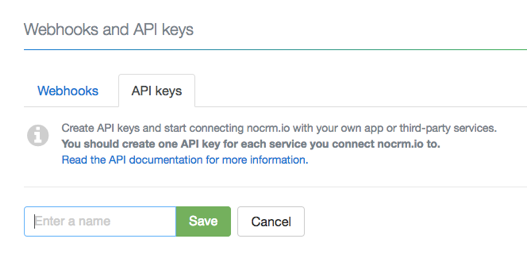
Enter your API key. To create one in noCRM, click your avatar at the top right, go to Admin panel > Integrations > API & automations > API Keys, click Create an API Key and name it.
Choose the step that triggers the email.
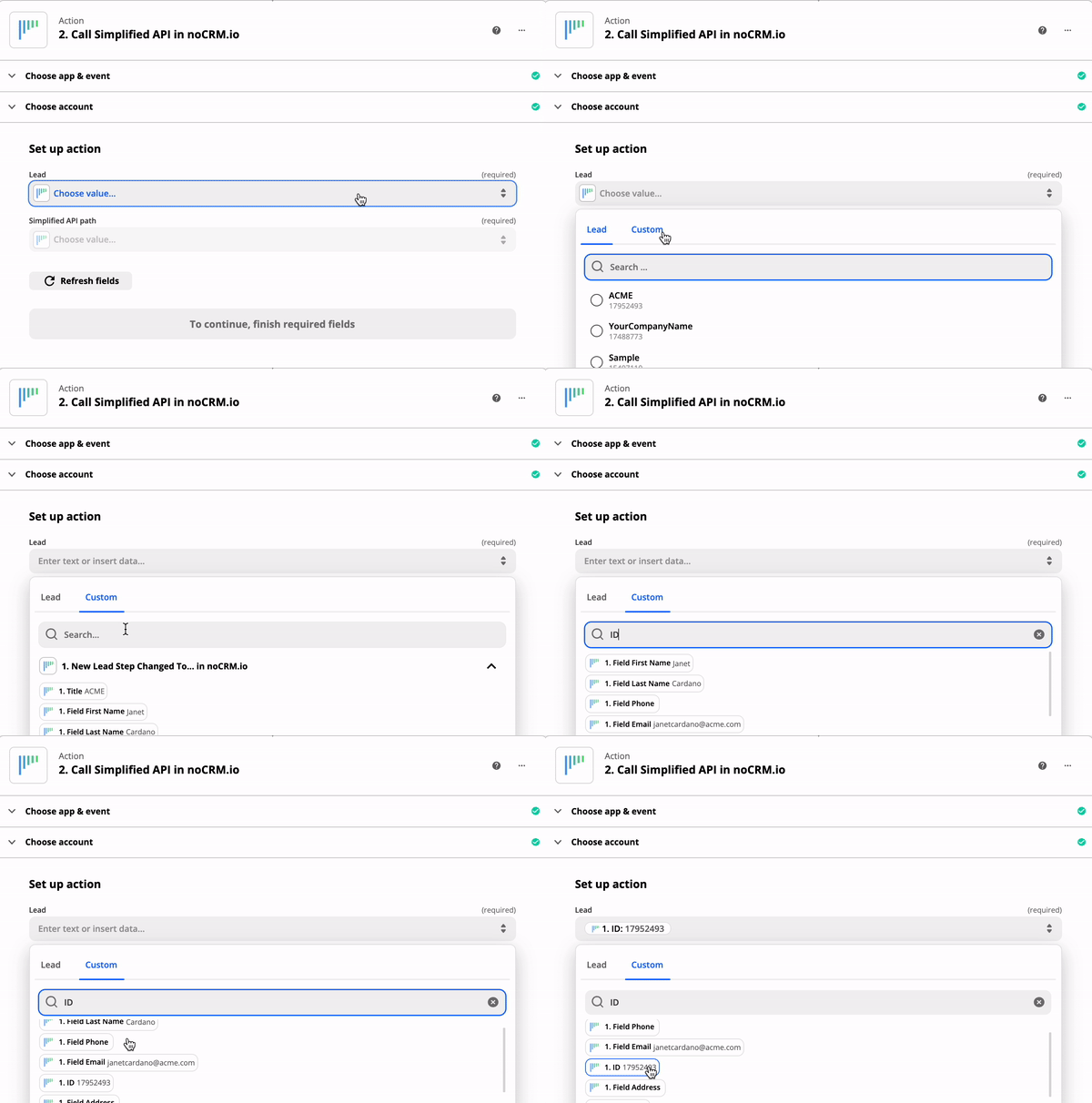
Select the noCRM app and choose the action event Call Simplified API.
Choose the noCRM account you already connected.
In the Custom tab, select the ID of the lead generated by the trigger.
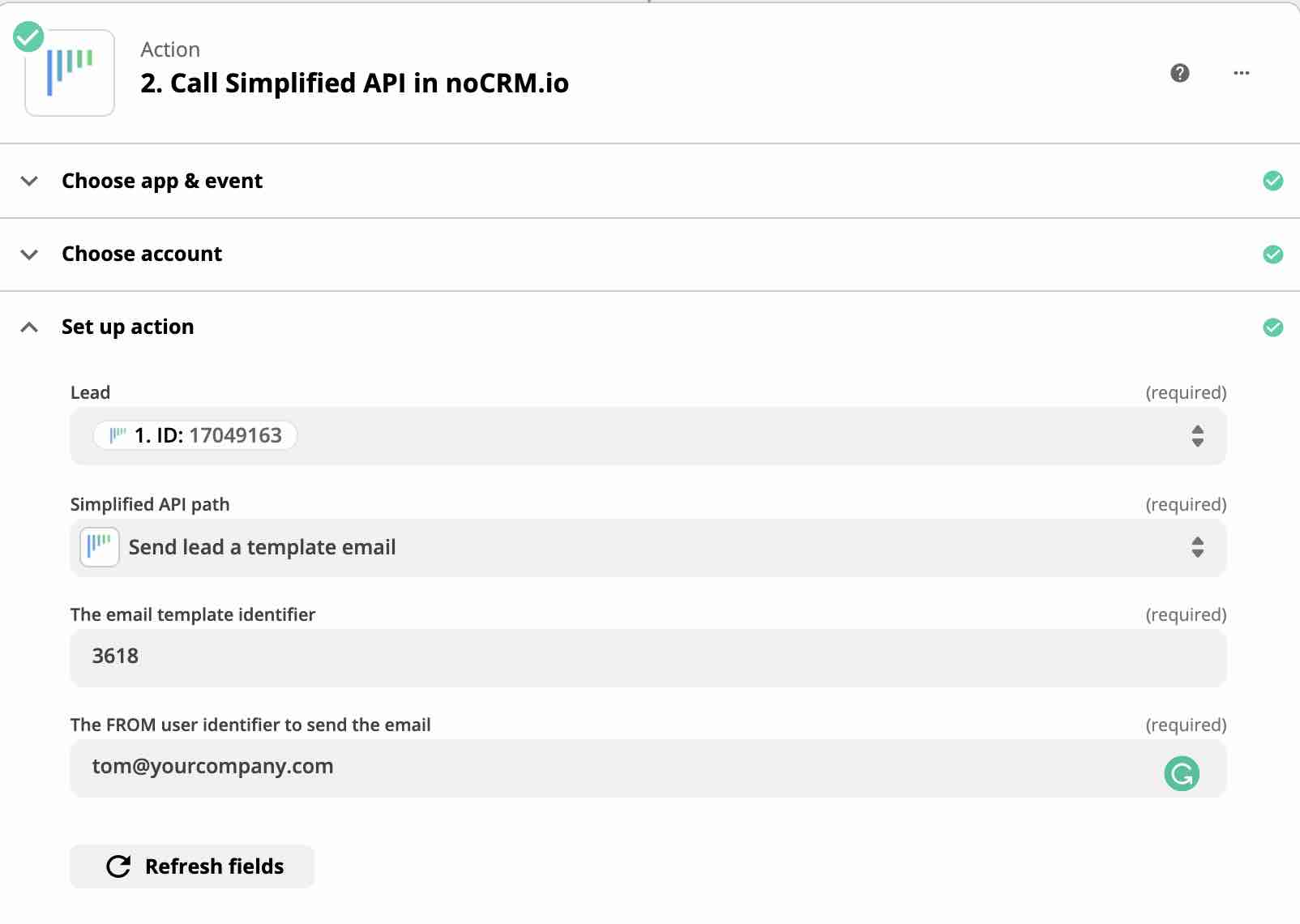
Choose Send lead a template email as the Simplified API path. Two more fields appear.
In the first field, enter the ID of the email template you want to use.
In the second field, enter the email address of the user the email will be sent from.
That's it! Your follow-up email is now automated for the step of your choice.