Automate sales follow-ups to manage more leads each day and stay on top of all of them. When a lead enters a step of your pipeline, the next action you need to take is automatically scheduled after a set delay.
You can automate this process with Zapier or Make (formerly Integromat), automation platforms that connect your apps based on a pre-set event that triggers one or more actions. In this guide, you'll learn how to automatically schedule a "Proposal" activity five days after a lead enters the "Meeting" step of the "Premium" pipeline.

Sales activity
Number of days
Pipeline step
Pipeline
Follow these steps:
Sign into your Zapier account and click Create Zap at the top left of the page.
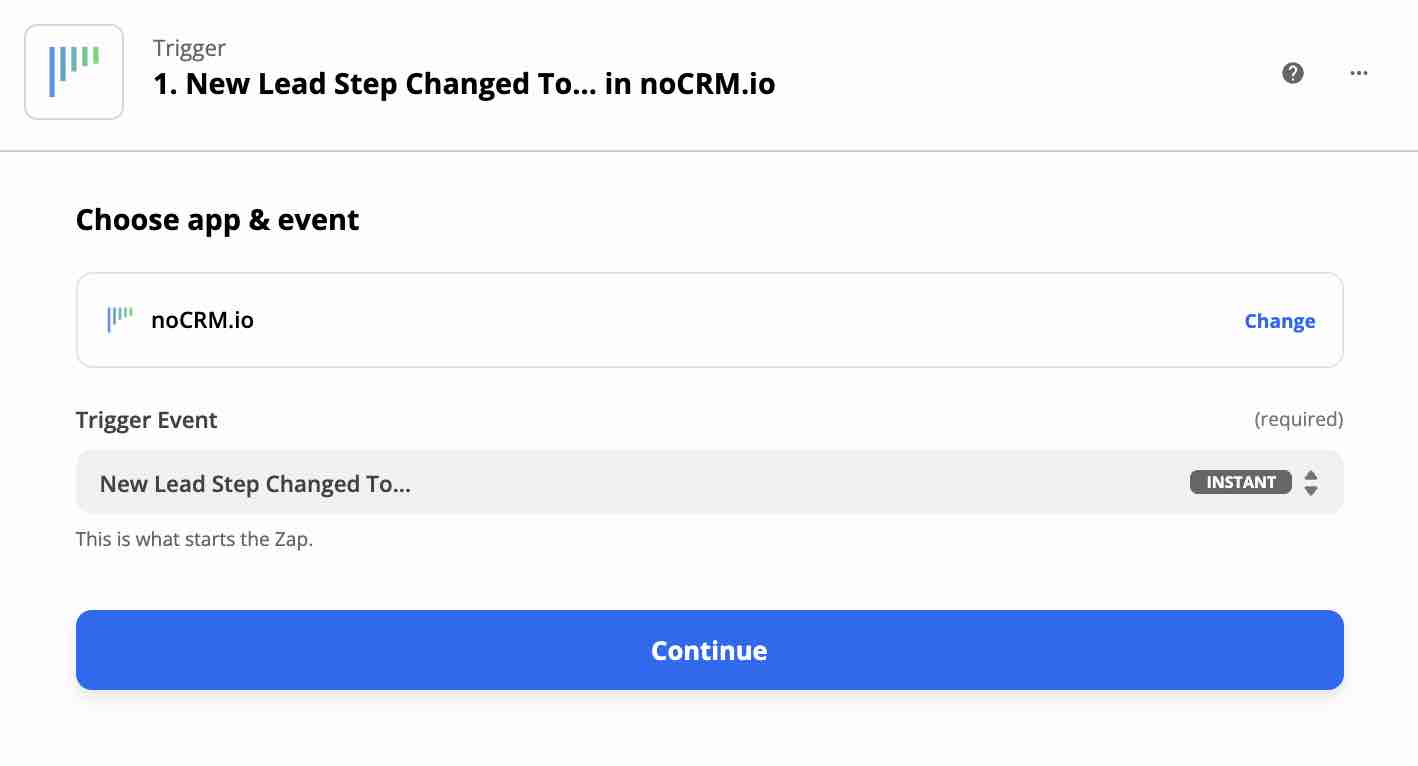
Select the noCRM app and choose the trigger event New Lead Step Changed to....
Enter your account name (https://AccountName.nocrm.io).
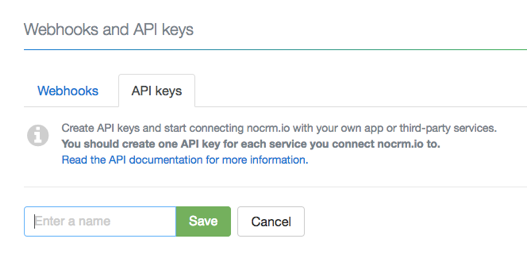
Enter your API key. To create one in noCRM, click your avatar at the top right, go to Admin panel > Integrations > API & automations > API Keys, click Create an API Key and name it.
Choose the step that triggers the Zap, here "Meeting".
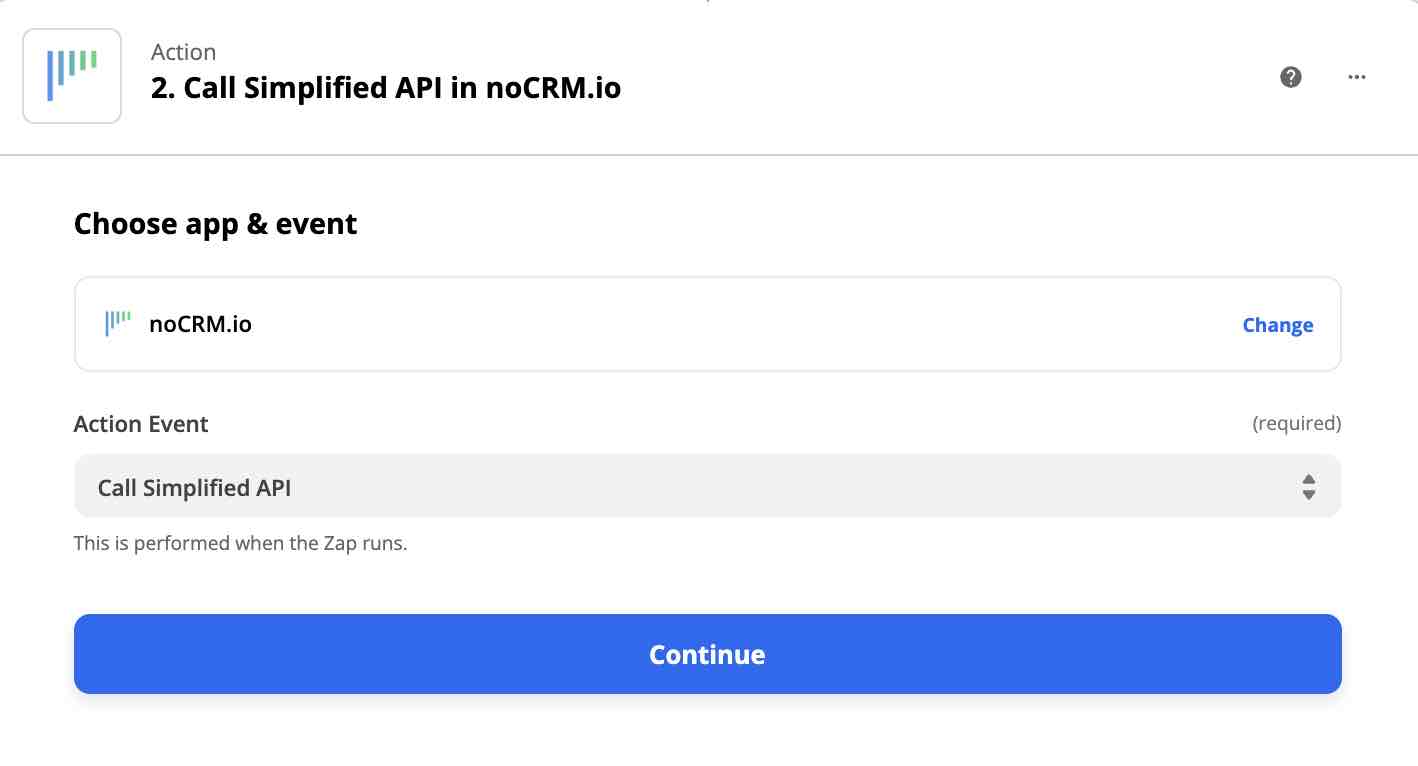
Select the noCRM app and choose the action event Call Simplified API.
Choose the noCRM account you already connected.
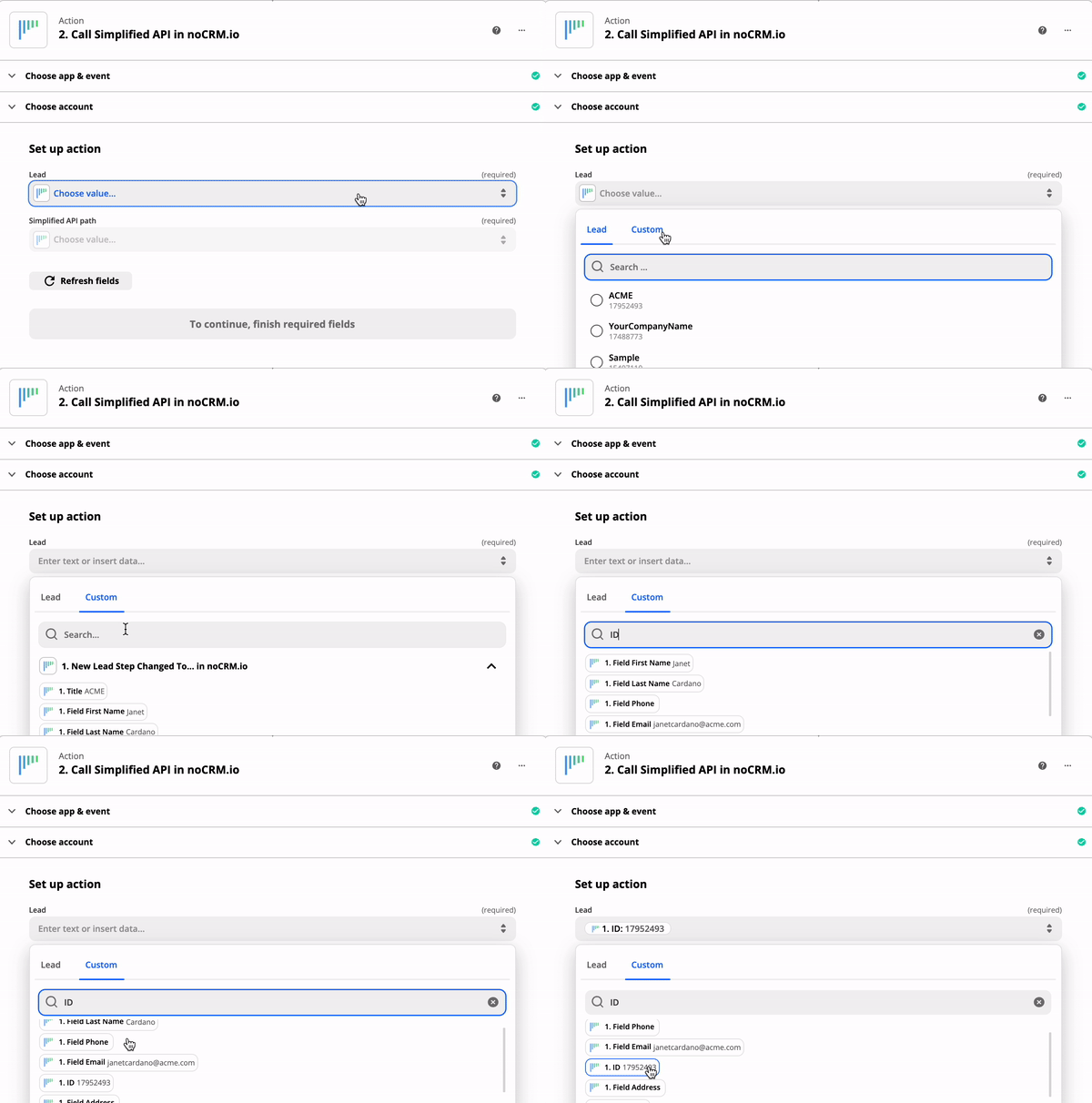
In the Custom tab, select the ID of the lead generated by the trigger.
Choose Change lead status to Standby as the Simplified API path. Two more fields appear.
In the first field, enter the number of days after which the reminder is scheduled.
In the second field, enter the ID of the activity you want to schedule.
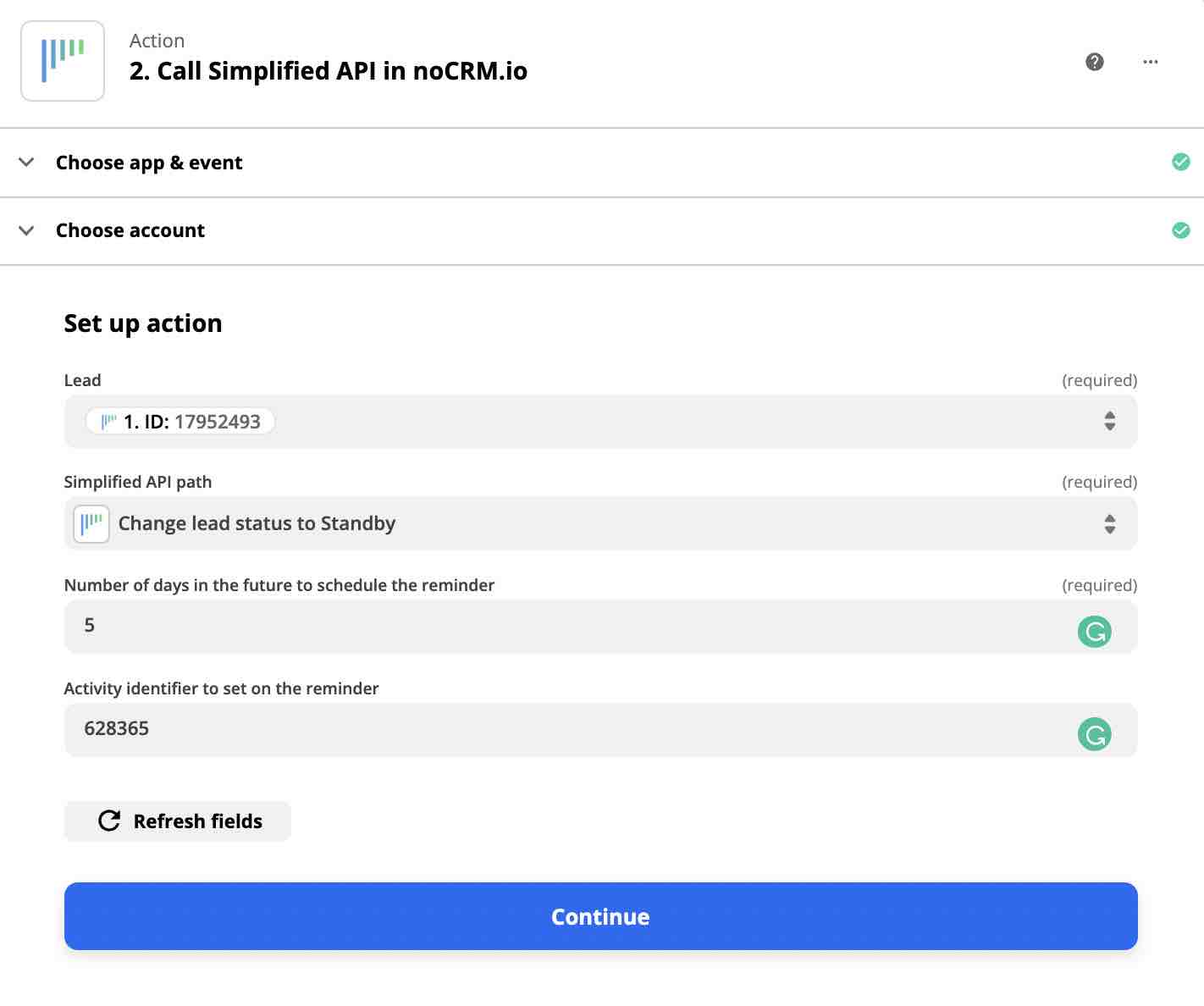
Your Zapier automation is ready.
Follow these steps:
Sign into your Make account and create a new scenario in the Scenarios section.
Select noCRM as the first module and choose the trigger Watch Lead Step Changed.
Next to the Connections field, click Add.
In the connection name field, enter a name for the connection.
In the Subdomain field, enter your account name. For example, if your account URL is https://AccountName.nocrm.io/, your subdomain is AccountName.
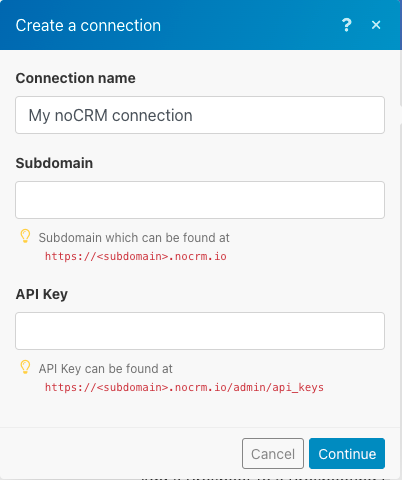
Enter your API key. To create one in noCRM, click your avatar at the top right, go to Admin panel > Integrations > API & automations > API Keys, create a new key, copy it, then click continue.
Select noCRM as the second module and choose the action Make an API Call.
Choose the connection you already set up.
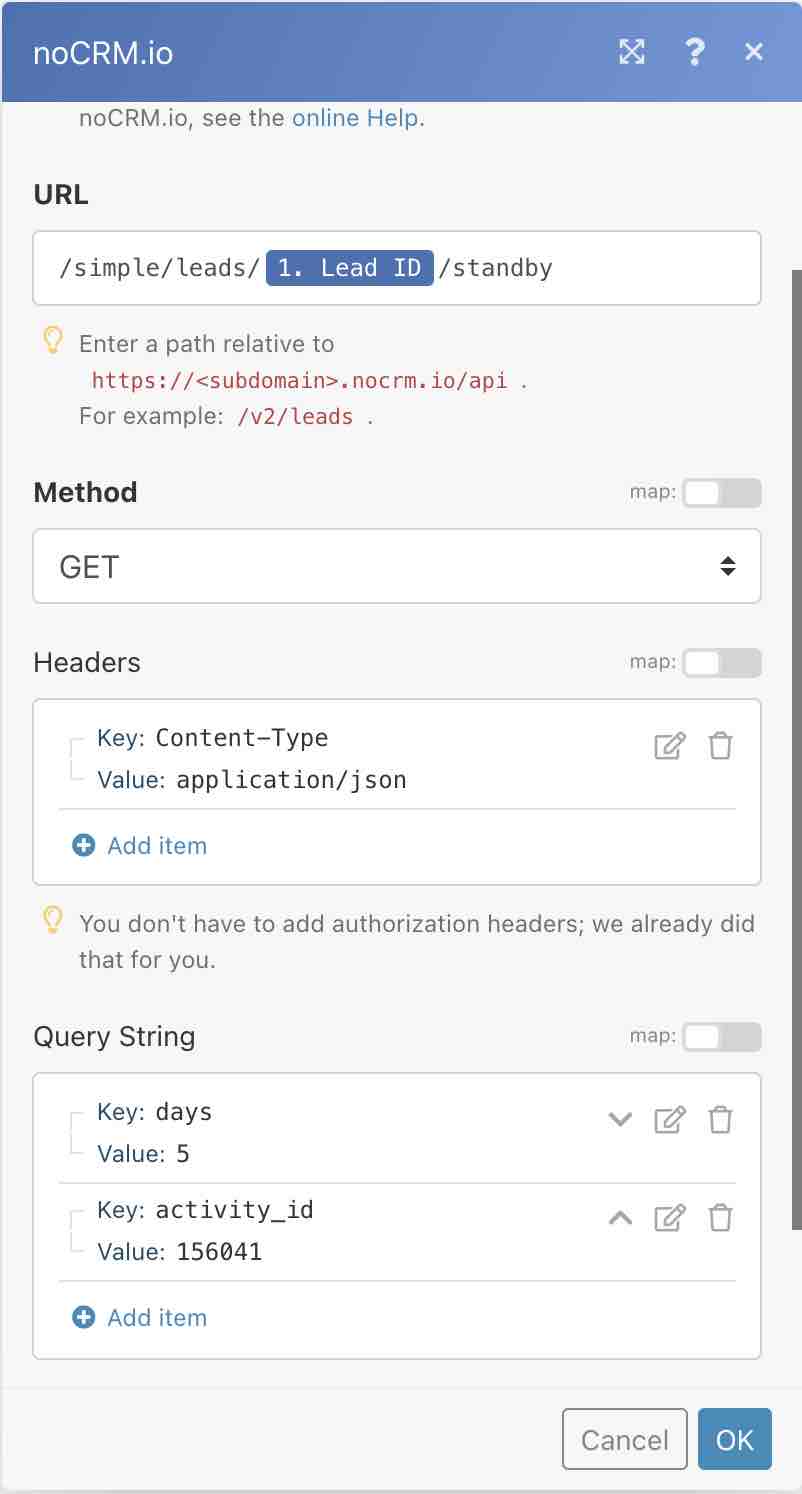
In the URL field, enter /simple/leads/{Lead_Id}/standby&activity_id.
Choose the GET method, scroll down to Query String and add two items.
For the first item, enter days as Key and the number of days as Value (here 5).
For the second item, enter activity_id as Key and paste the ID of the activity to schedule as Value. To find it, go to Admin panel > Integrations > API & automations > Account object ID's.

Click the three dots between the two modules and select Set up a filter.
In the condition field, select the noCRM Step from the noCRM module, choose the text operator Equal to and type the name of your step, here "Meeting".
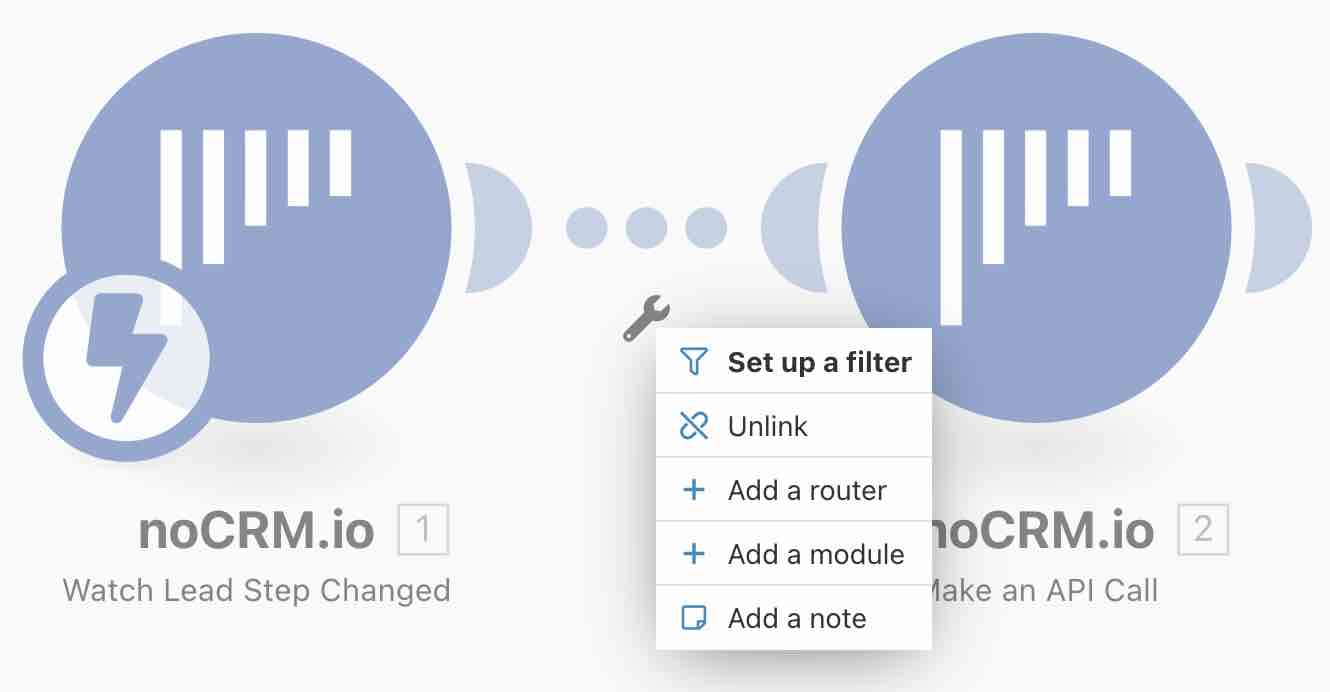
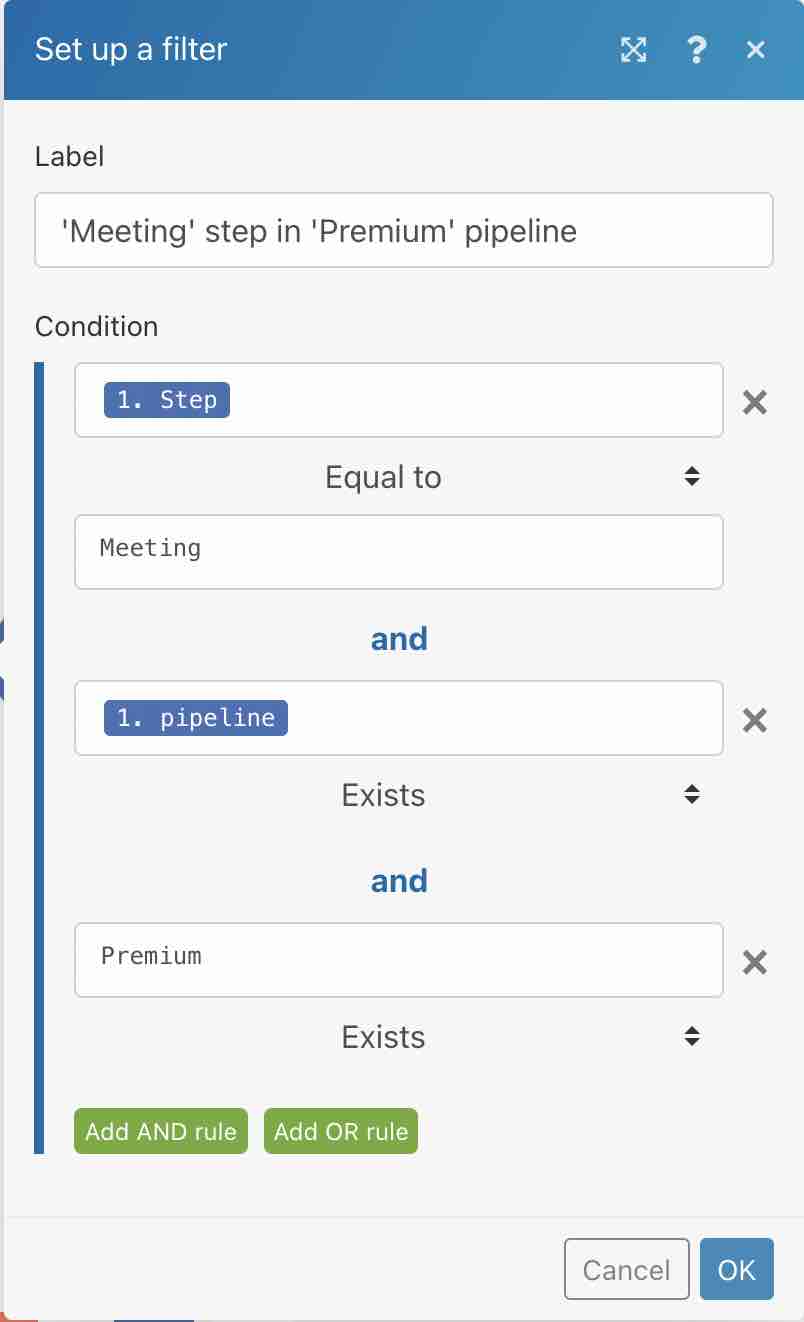
Your scenario is now ready to run.