This article helps you understand how to set up, structure, and launch Automations inside noCRM.
The Automations module allows you to define rules inside your noCRM account that react to specific events in your account and trigger actions—like sending a notification or tagging a lead. It’s built to help you save time, reduce manual work, and avoid mistakes.
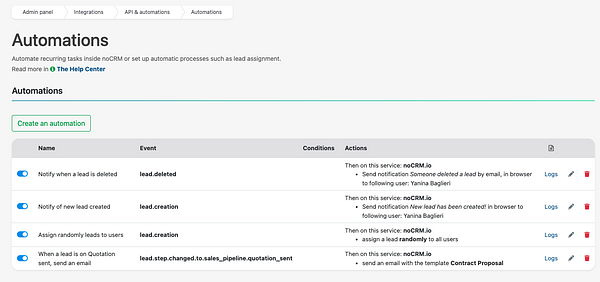
Whether you want to notify a user when a lead is created, assign leads automatically, or trigger email sequences based on pipeline steps, Automations help you do it all, without using third-party tools like Zapier.
This feature is only available on the Dream edition.
Go to your Admin Panel > API & Automations > Automations
Click New Automation and give it a name (e.g. "Notify when a lead is deleted")
Define:
The Event that triggers the automation
(Optional) The Conditions
The Action(s) to be performed
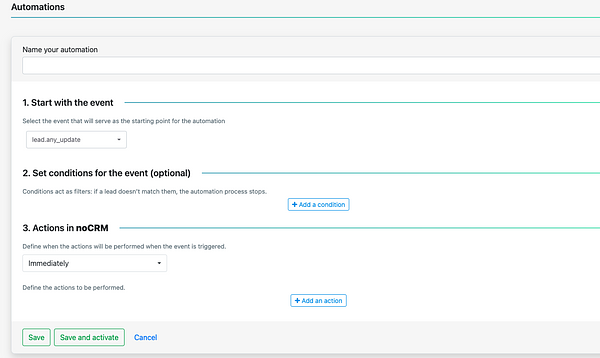
Once saved and activated, noCRM will handle the rest every time the event occurs.
lead.creation: A lead is created
lead.deleted: A lead is deleted
lead.any_update: Any field or detail of a lead is updated
lead.email.received: A lead receives an email
lead.status.changed.to: The lead's status changes
lead.step.changed.to: The pipeline step changes
lead.assigned: A user is assigned to a lead
lead.unassigned: A lead is unassigned
lead.content_has_changed: The core information of the lead was edited
lead.commented: Someone leaves a comment on the lead
To narrow down when an automation should run, you can add conditions such as:
Has the tag (e.g. B2B, Priority)
Has the status (e.g. Standby, Won)
Is the owner (assigned to a specific user)
In the pipeline (e.g. Sales, Onboarding, Support)
Is a potential duplicate (lead matches potential duplicate detection)
Is not a potential duplicate (lead does not match potential duplicate detection)
If the lead doesn't match the condition, the automation won’t run.
You can trigger one or multiple actions when the event and conditions are met:
✅ Notify a user (via email, browser, or mobile)
✅ Assign the lead to a specific user
✅ Assign the lead randomly to a group of users (round-robin style)
✅ Add tags to the lead
✅ Send an email (using a predefined template – only with personal email connected)
etc.
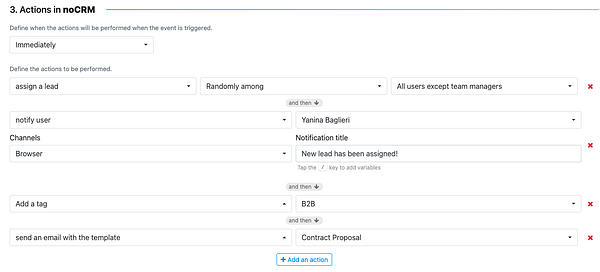
You can define if the action happens immediately or after a delay and can combine multiple actions in one rule.
Yes! You can chain multiple actions in a single automation.
Example:
When a lead enters the “Closing” step:
Add tag “Priority”
Notify the Sales Manager
Send a predefined email
In many cases, yes, but it's a noCRM <> noCRM automation for now.
Automations cover the most common sales use cases inside noCRM—like distributing leads, notifying reps, and launching email sequences. For actions involving external apps like Google Sheets, you may still need tools like Zapier or Make.
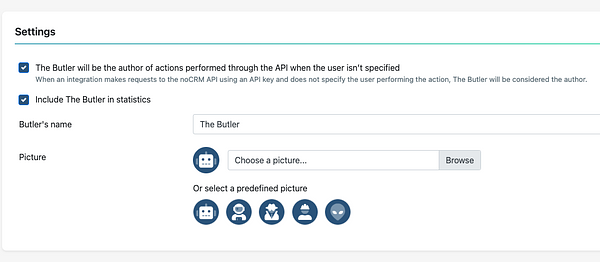
All automated actions are performed by a special system user called The Butler, ensuring that your reporting and activity history remain clean and accurate. You can personalize it from the Admin Panel > API & Automations > The Butler
Only admins in Dream editions can create, manage, or edit automation rules. Once active, automations run in the background without any manual input.
Here are some examples of what you can do with Automations in noCRM:
Notify when a lead is created or deleted Automatically assign a lead to a user or distribute randomly Equally distribute new leads between users When a lead enters the “Quote” step, send an email and tag it Add “Upsell Opportunity” tag when lead status changes to Won Automatically assign a lead to a user or distribute randomly Skip duplicates and assign only new leads
Use this automation to stay on top of key activity.
Event: Lead is created / deleted
Action: Notify a specific user
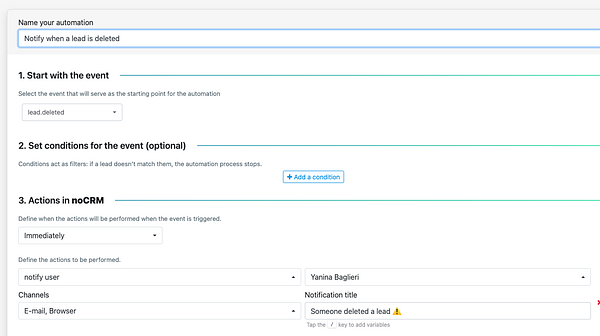
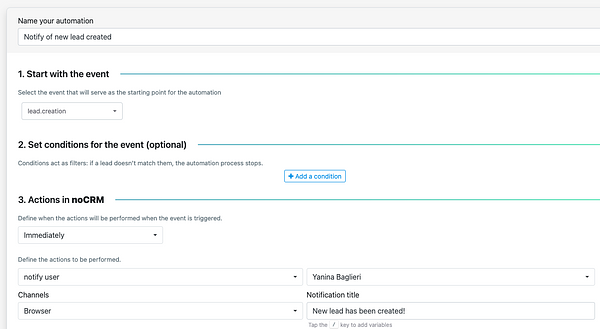
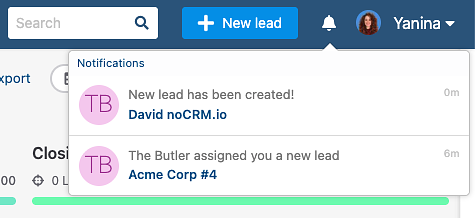
You can assign a lead to a specific user, or distribute it automatically among several team members randomly.
Event: Lead is created
Action: Assign to a user or round-robin among selected users
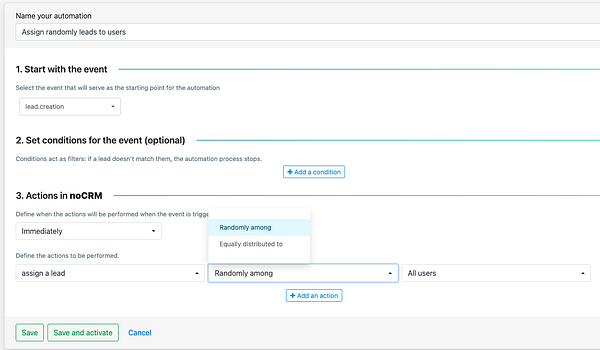
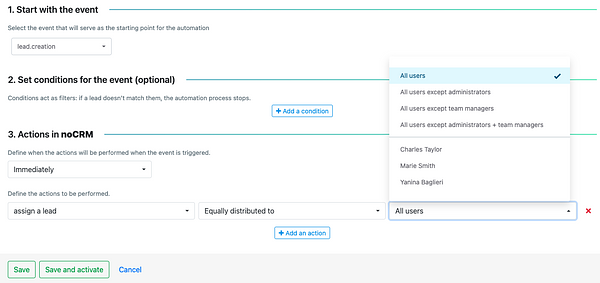
Example: You want to assign new leads equally to your SDRs to balance workload.
Event: Lead is created
Action: Equally assign to Anna, Math, or Joe
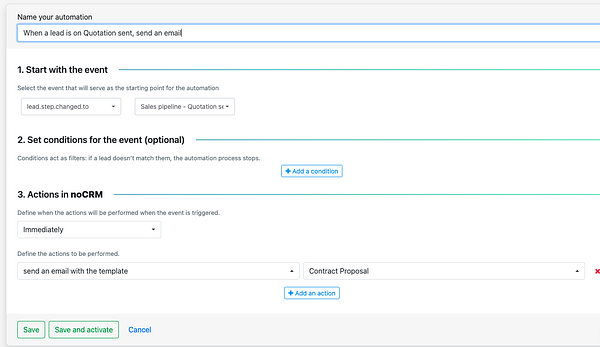
Example: A lead reaches the “Quote” step in the pipeline. You want to send them a follow-up email and tag it for tracking.
Event: Step changed to “Quote”
Conditions: In the “Sales” pipeline
Actions:
Send email (using template)
Add tag: Quote Sent
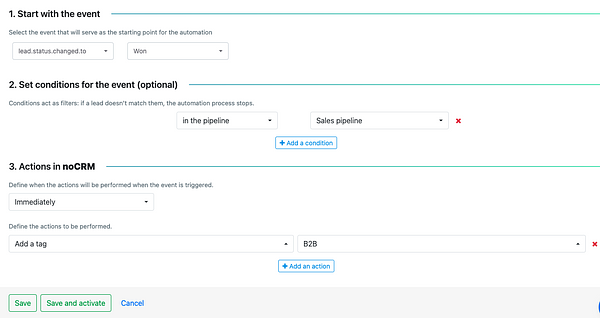
Event: Status changed to “Won”
Action: Add tag: Upsell Opportunity
Example: When a lead is created, automatically assign it to your team—but only if it's not a potential duplicate. Duplicate leads remain unassigned for manager review.
Event: Lead is created
Condition: Is not a potential duplicate
Action: Assign randomly to your users
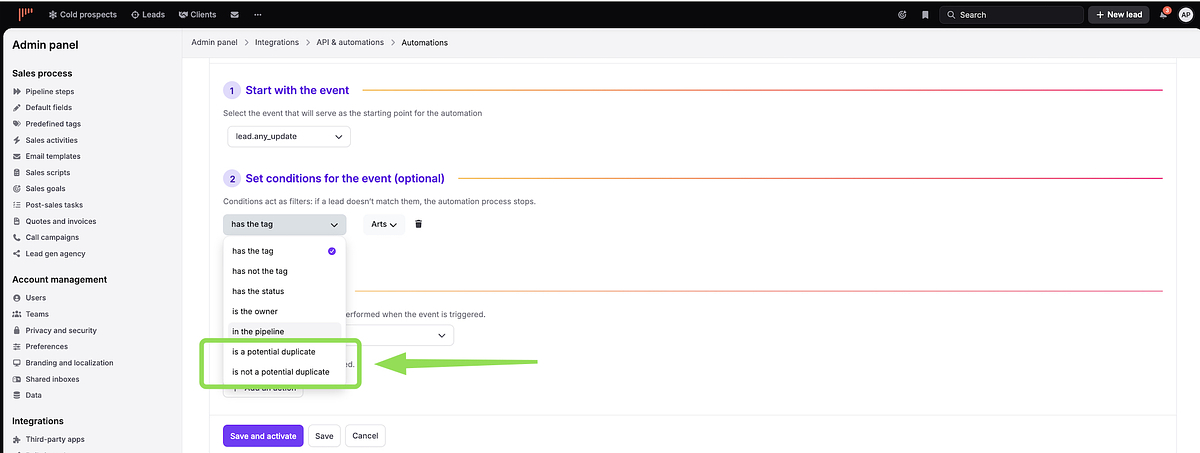
This approach ensures new, legitimate leads get distributed to your team right away, while suspected duplicates stay unassigned so a manager can investigate and merge them if needed.
These are just a few ideas to get started. You can combine conditions and actions to build automations that match your exact sales process.
