The integration between Ubic and noCRM works in both directions. Your prospecting lists become calling lists in Ubic, and the results of your calls are sent back to noCRM.
From noCRM to Ubic: your prospecting lists are converted into calling lists. They refresh automatically every night, or manually on demand with the Reload from noCRM button.
From Ubic to noCRM: after each call, the lead's activity history receives the call result (Successful or Unsuccessful), the duration and the recording. The status and the note are synced too.
Each workspace chooses which information it sends to noCRM.
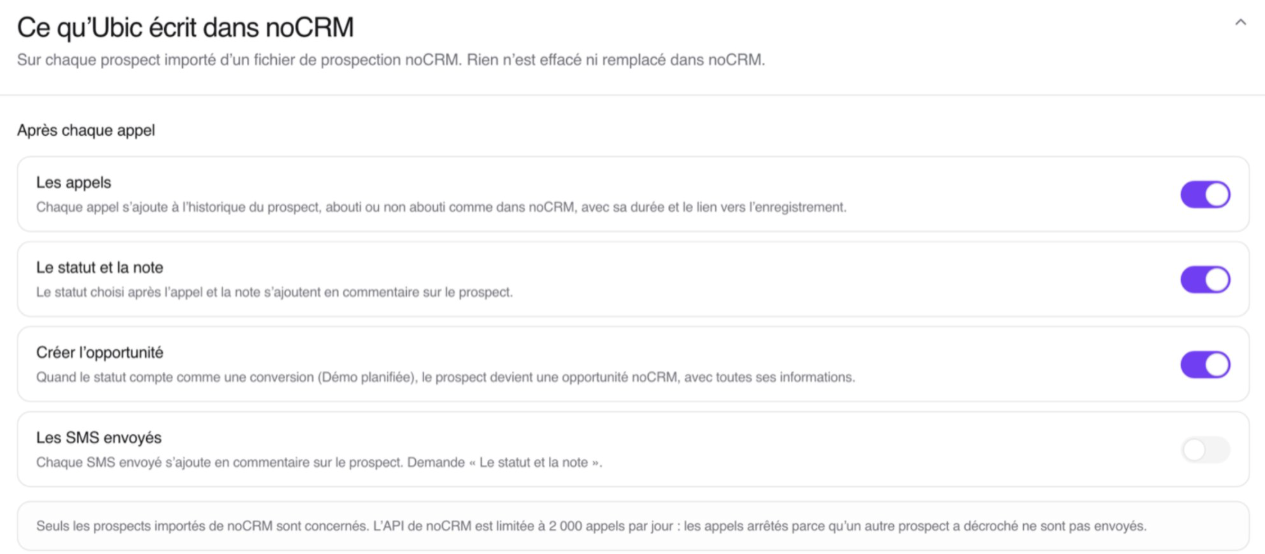
Ubic only writes to prospects imported from a noCRM prospecting list. An administrator chooses which of the following items are sent:
Calls: each call is added to the prospect's history as Successful or Unsuccessful, with its duration and a link to the recording.
Status and note: the status chosen after the call and the note are added as a comment on the prospect.
Create opportunity: when the status counts as a conversion (for example Démo planifiée), the prospect becomes a noCRM lead with all its information.
SMS sent: each SMS sent is added as a comment on the prospect. This option requires Status and note to be turned on.
Nothing is deleted or overwritten in noCRM. When you connect noCRM, Calls, Status and note, and Create opportunity are turned on by default, and SMS sent stays off.

Follow these steps:
Click your avatar at the top right.
Go to Admin Panel > Integrations > API > API Keys.
Click Create an API Key, then copy the key.

Follow these steps in your Ubic account:
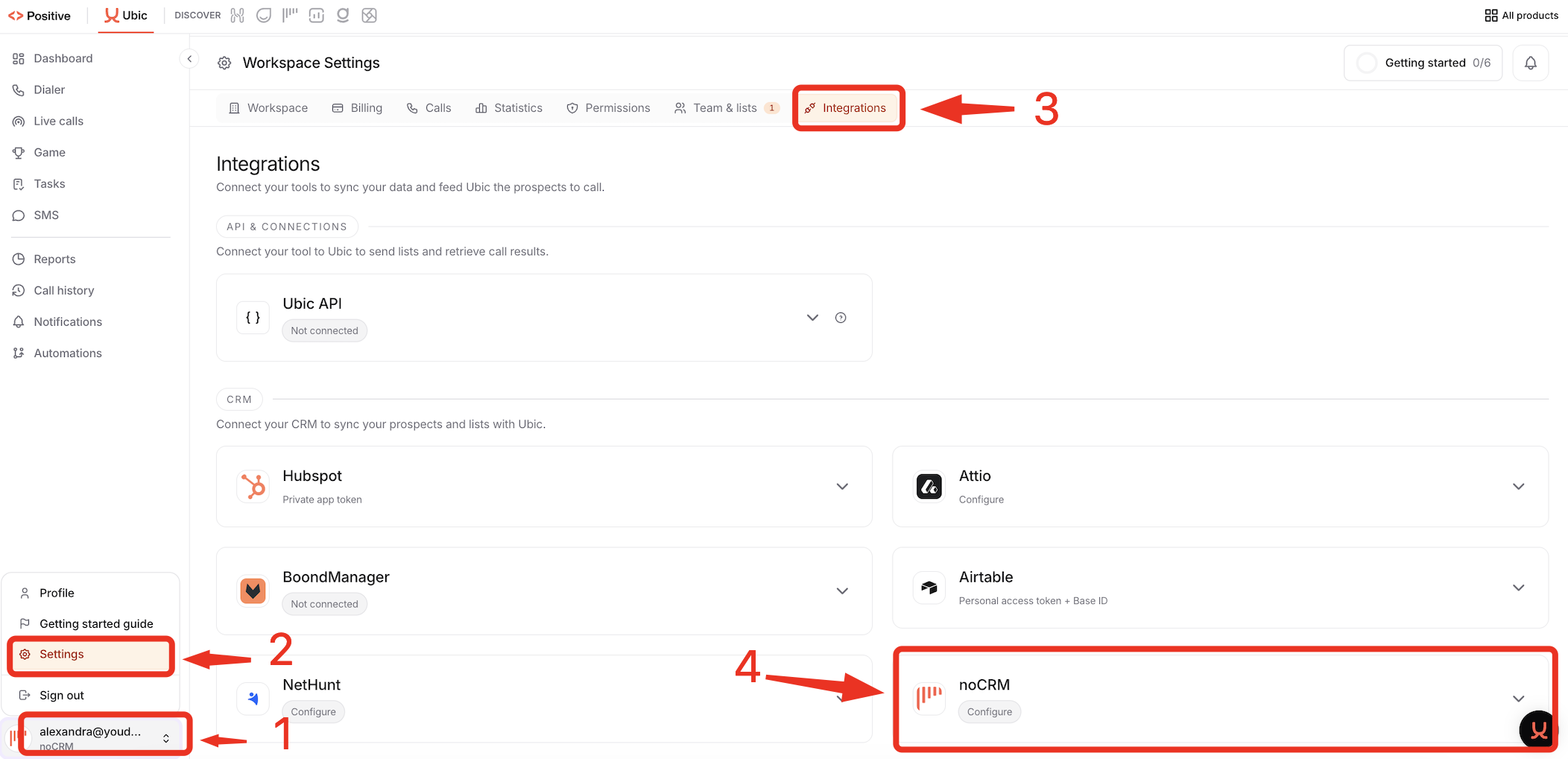
Click your account name at the bottom left of the Ubic sidebar.
Click Settings.
Click the Integrations tab.
In the CRM section, find noCRM and click Configure.
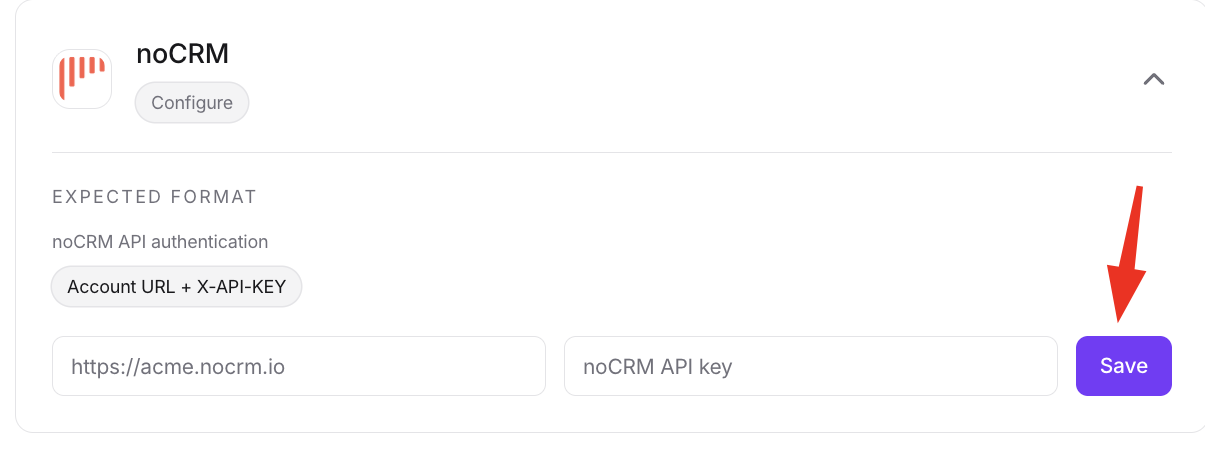
Enter your account URL in the format https://SLUG.nocrm.io.
Paste your noCRM API key, then click Save.
Follow these steps:
In Ubic, start creating a new calling list.
Select noCRM as the source.
Select the noCRM prospecting list you want to import.
Match the columns. The phone column is required.
For the full step-by-step guide, see the Ubic Help Center: