Humanlinker is a prospecting tool that runs LinkedIn and email sequences. Connect it to noCRM and Humanlinker uses the leads and companies already in your noCRM pipeline to target your campaigns. In return, it creates and updates your noCRM leads and logs your prospecting activities on them.
If you don't have a Humanlinker account yet, sign up here. If you already use Humanlinker but don't have a noCRM account, start your free trial.
Exclusive offer for noCRM customers 🎁
40% off the annual Pro plan with the code NOCRM40.
20% off the monthly Pro plan with the code NOCRM20.
30% off the Business plan: contact our support team.
These discounts only apply to the first year of your Humanlinker subscription.
For more on how Humanlinker works, visit the Humanlinker Help Center.

It syncs your noCRM leads, prospecting lists, client folders and users into Humanlinker.
It creates leads and prospecting lists in noCRM from your Humanlinker contacts and keeps them up to date, based on the triggers you choose.
It logs your Humanlinker activities in noCRM as real activities on the lead, and your Humanlinker tasks as follow-up reminders.
It shows your noCRM leads and accounts in Humanlinker, with their CRM owner, step and status.
It lets you add noCRM leads to a Humanlinker campaign without exporting a CSV file.
It lets you import and export prospecting lists between noCRM and Humanlinker.
It lets you preview Humanlinker profiles in noCRM leads and client folders with the Chrome extension

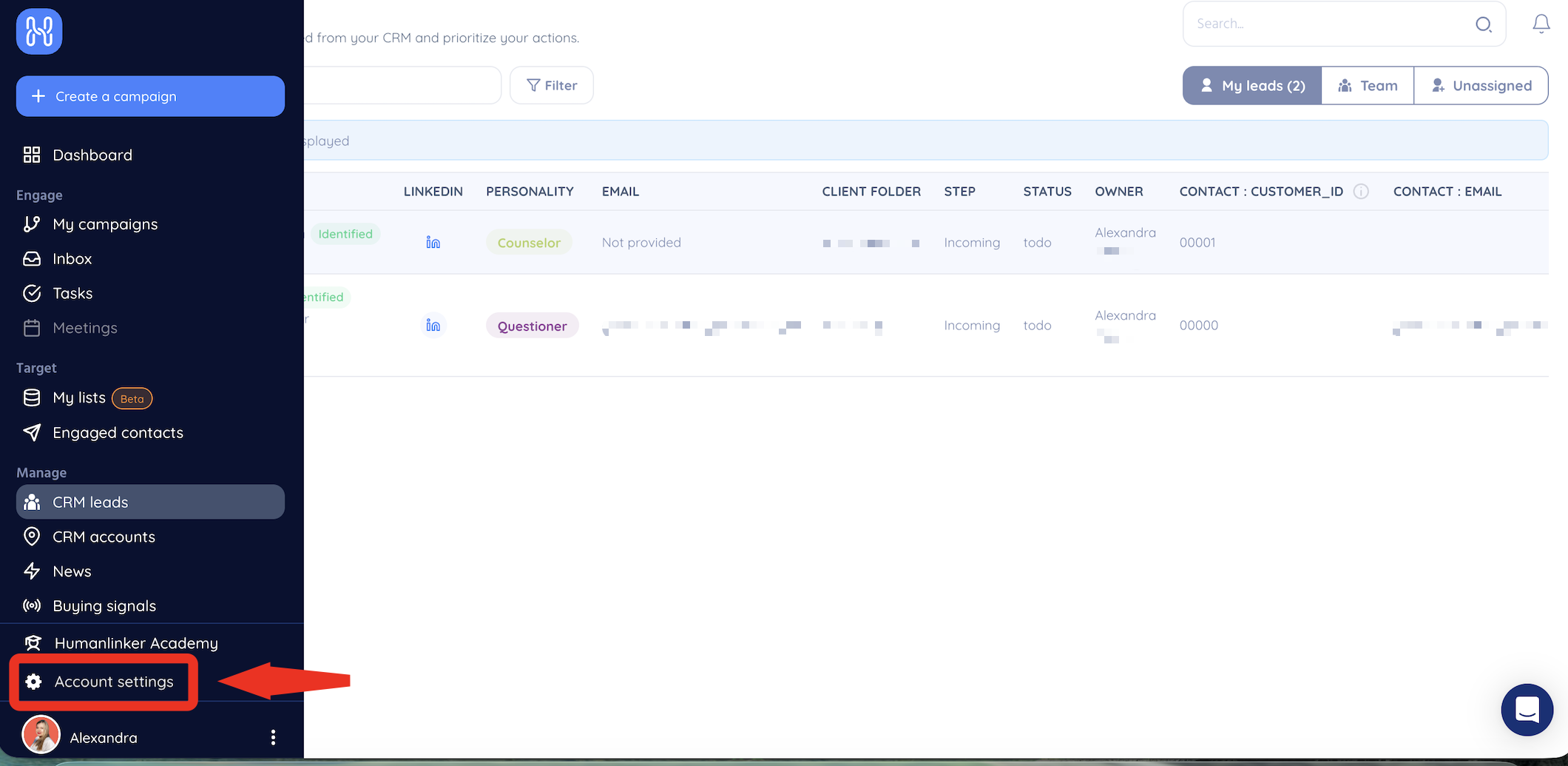
Follow these steps:
Click your avatar at the top right.
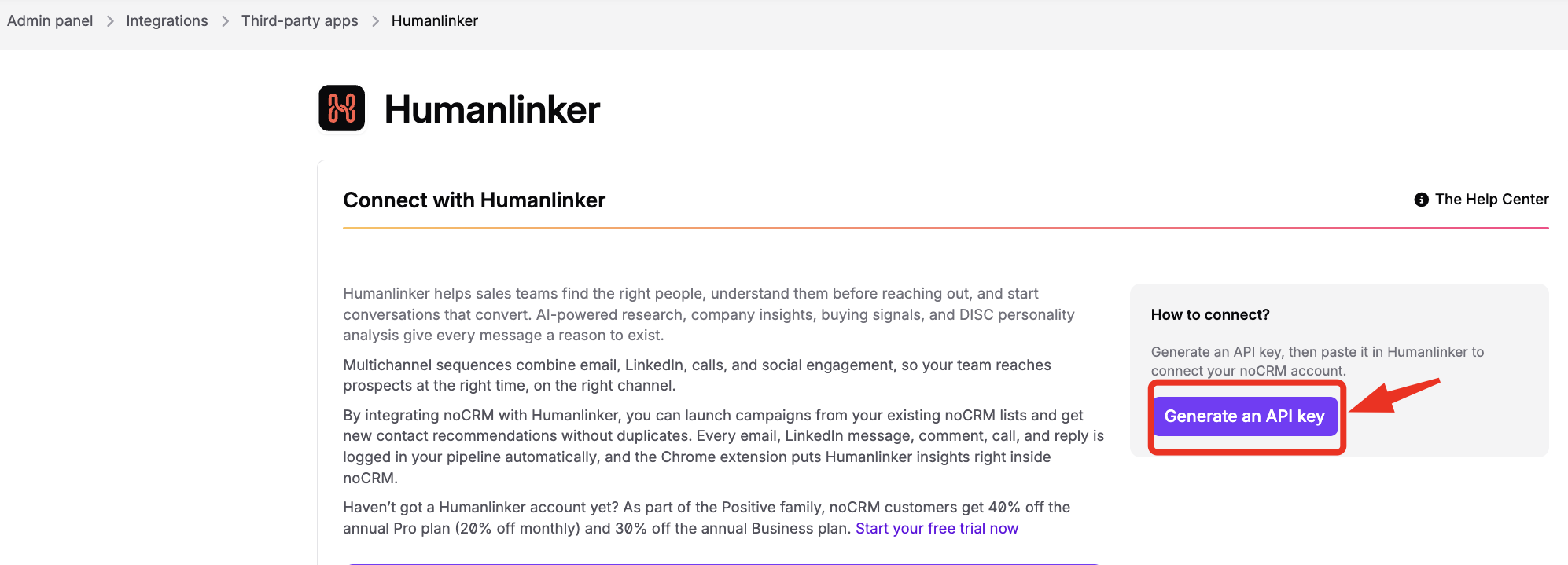
Go to Admin panel > Integrations > Third-party apps > Humanlinker.
Click Generate an API key.
Copy the API key right away: it's only displayed once.
Follow these steps:
In Humanlinker, go to Settings > Integrations.
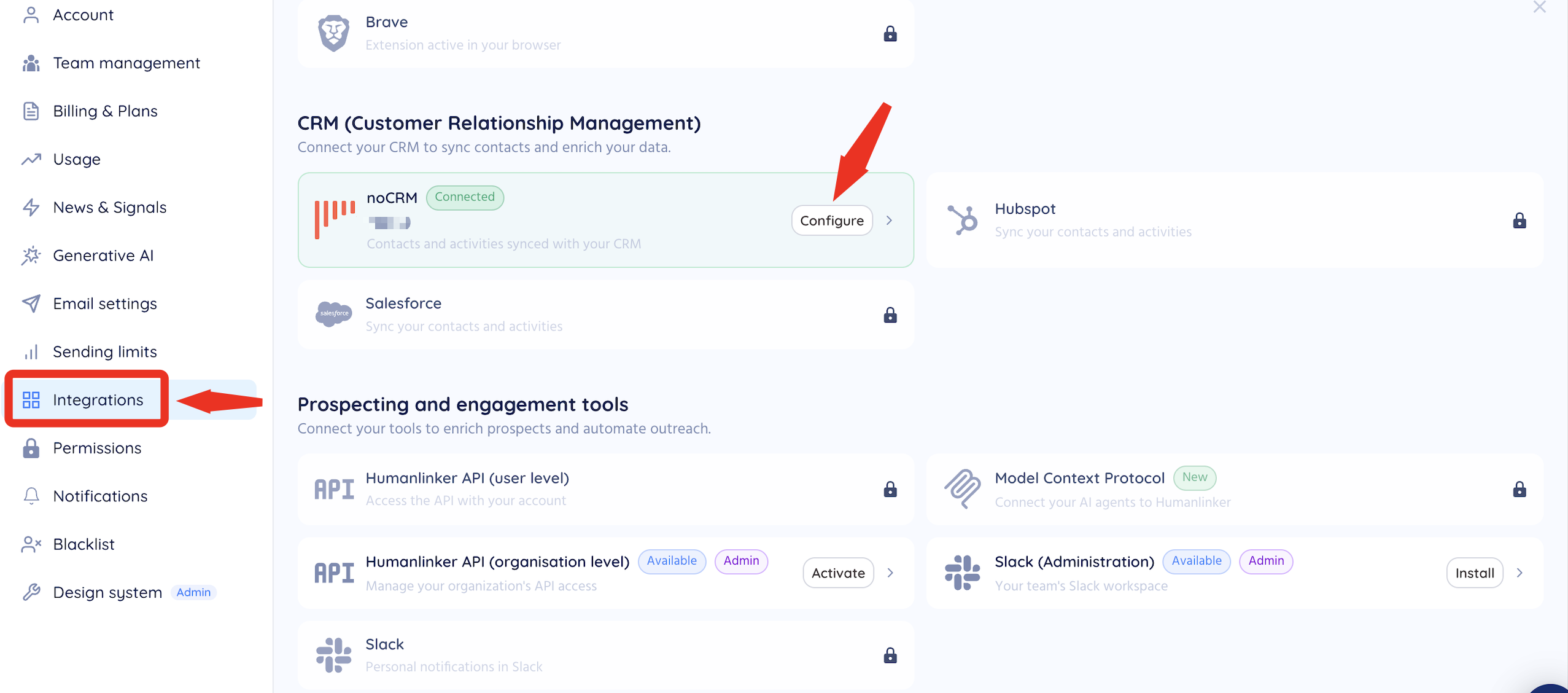
In the CRM section, click Configure next to noCRM.
Enter your noCRM subdomain (the part before .nocrm.io in your account URL).
Paste your noCRM API key and save the connection.
What you should see: the noCRM integration shows the Connected status, and the synchronized data lists leads, companies, users, activities and tasks.

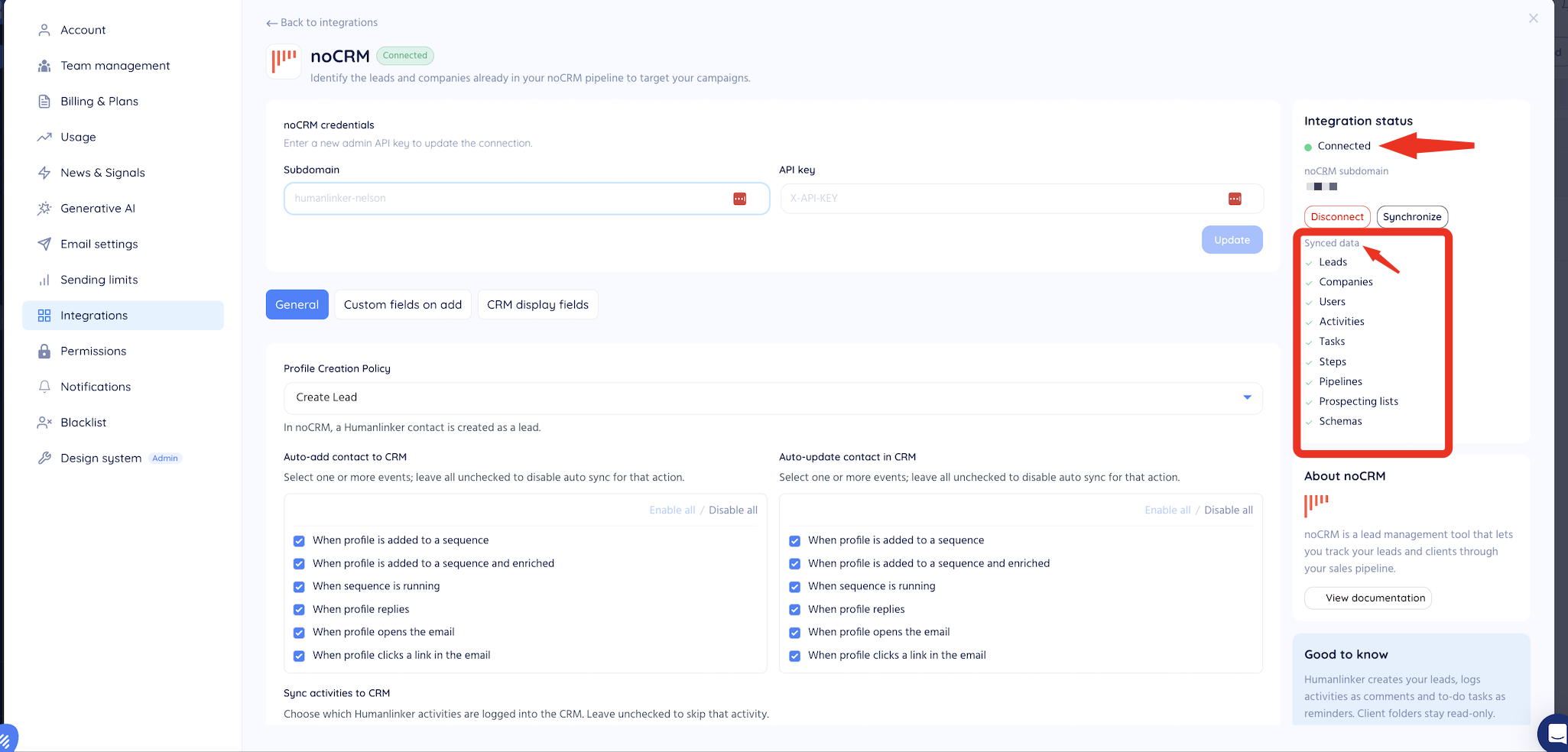
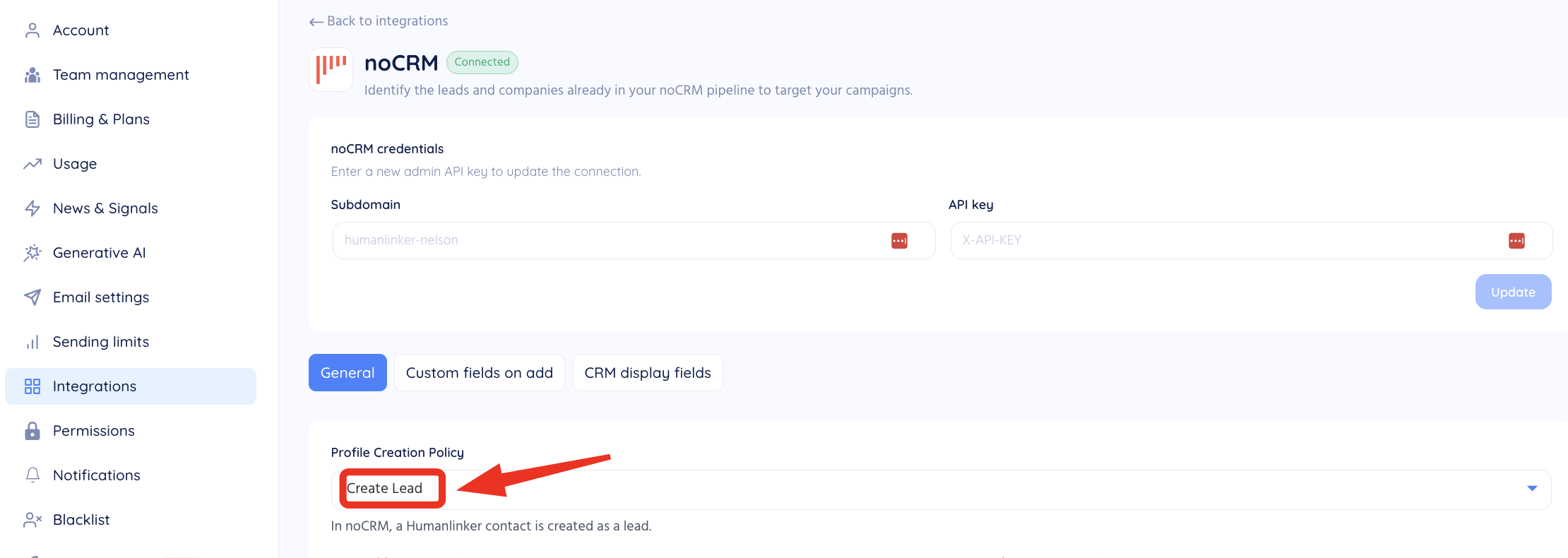
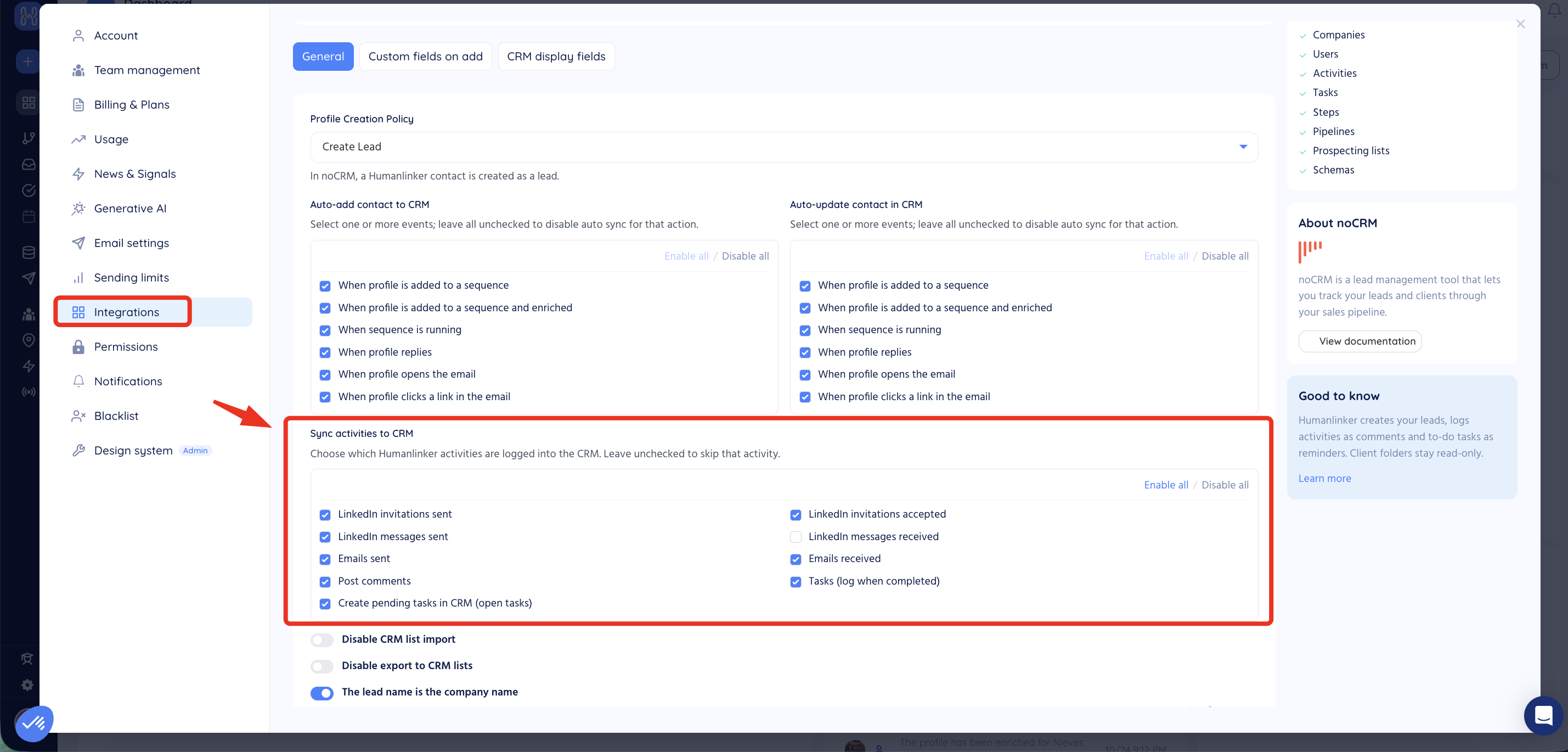
In Humanlinker, the General tab of the noCRM integration lets you choose:
How contacts are created in noCRM: with Create a lead, each Humanlinker contact is created as a noCRM lead.
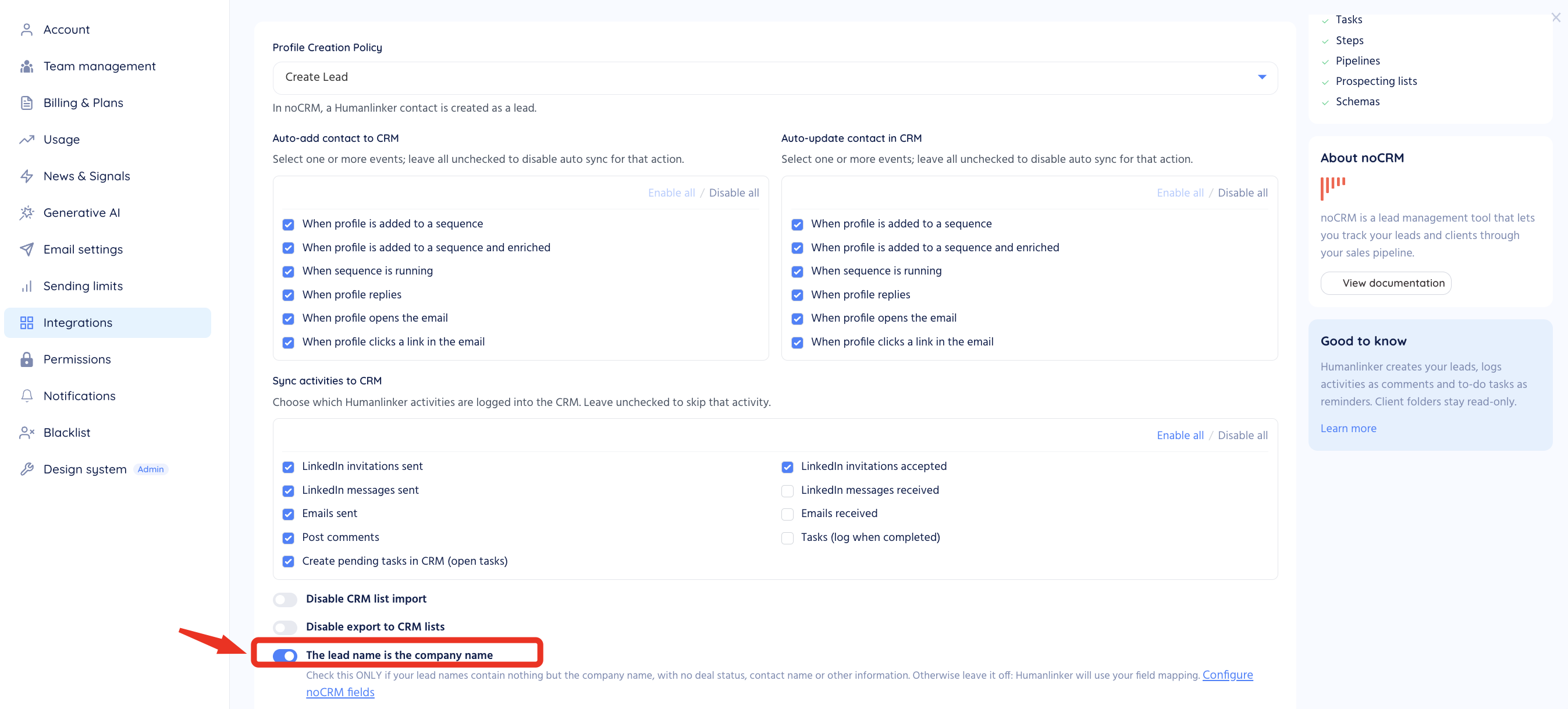
When a contact is added to noCRM automatically: when it's added to a sequence, once it's enriched, when the sequence starts, or when the contact replies, opens the email or clicks a link in it.
When the noCRM lead is updated automatically, with the same triggers.
Which activities are logged in noCRM: LinkedIn invitations sent and accepted, LinkedIn messages sent and received, emails sent and received, post comments, and tasks once completed.
If you tick no trigger in a column, that automatic action is turned off.
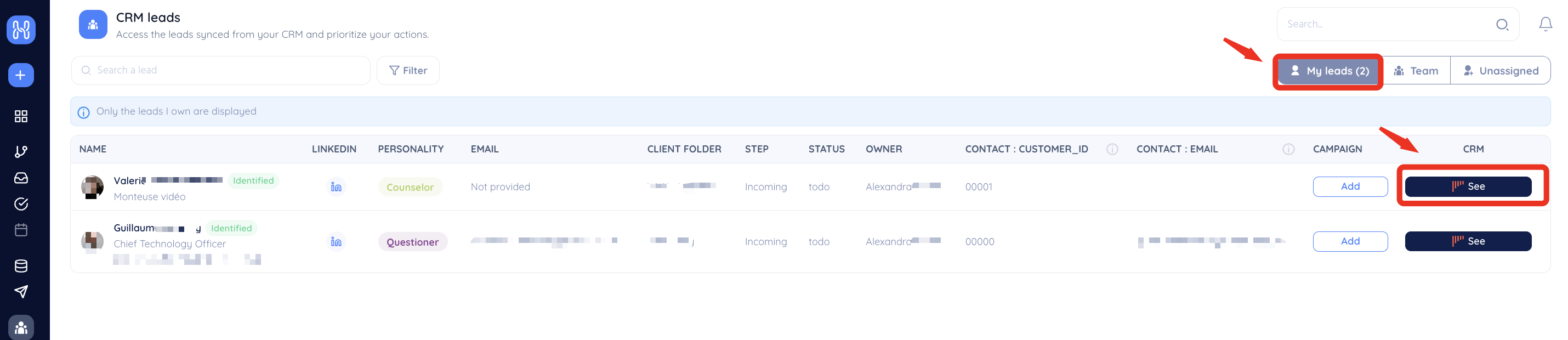
In Humanlinker, CRM leads and CRM accounts list the leads and companies synchronized from noCRM, with their owner, step and status. Filter them with My leads, Team or Unassigned, and click See to open the lead in noCRM
With the HL Insight Chrome extension, open any lead in noCRM and click the extension. A side panel shows the contact and company details, a verified email and a DISC profile. From this panel, you can add the contact to a campaign or generate an email, an icebreaker or a post comment.
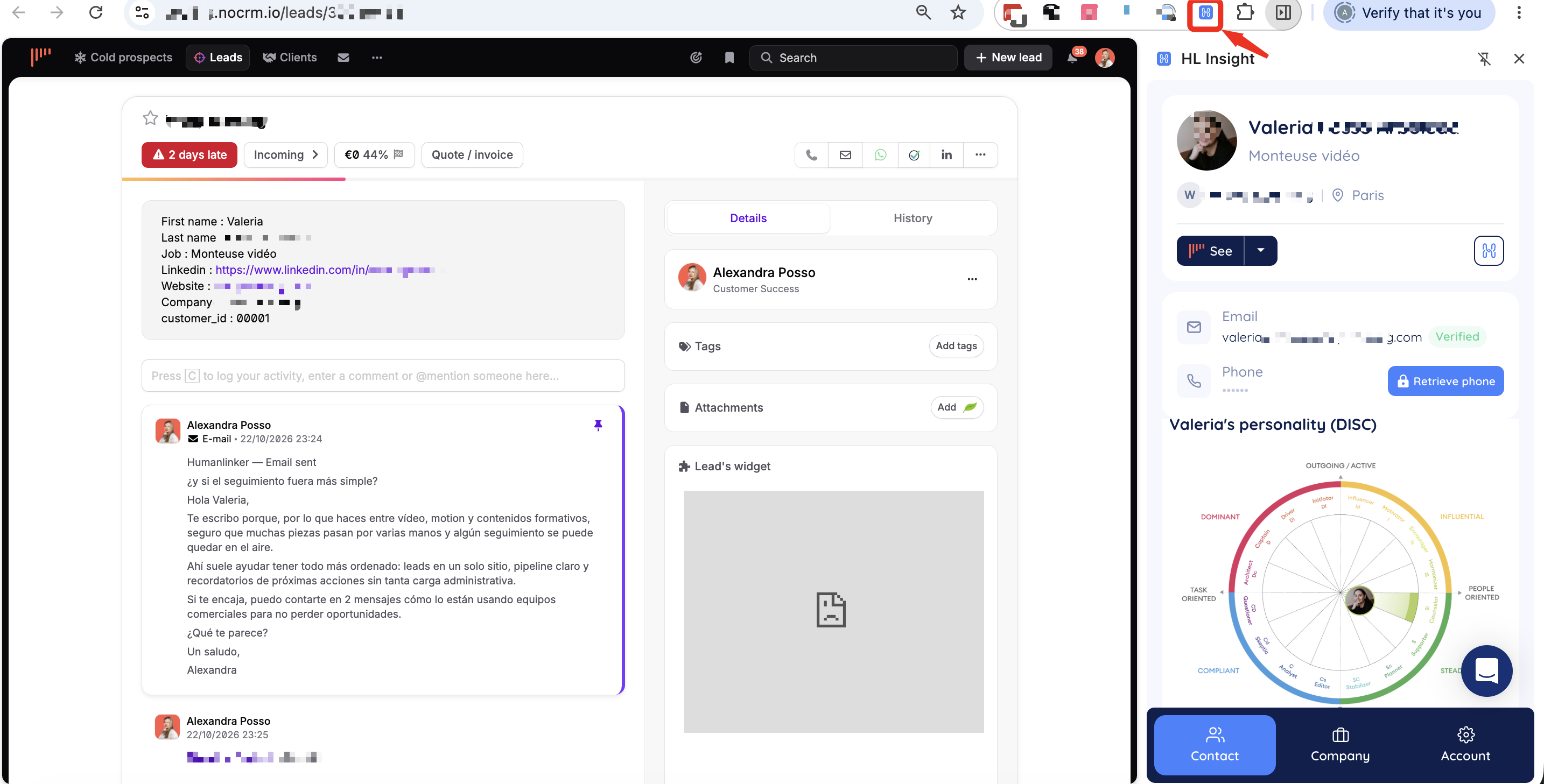
To create a noCRM lead from a LinkedIn profile, follow these steps:
Open the contact's LinkedIn profile, then click the HL Insight extension.
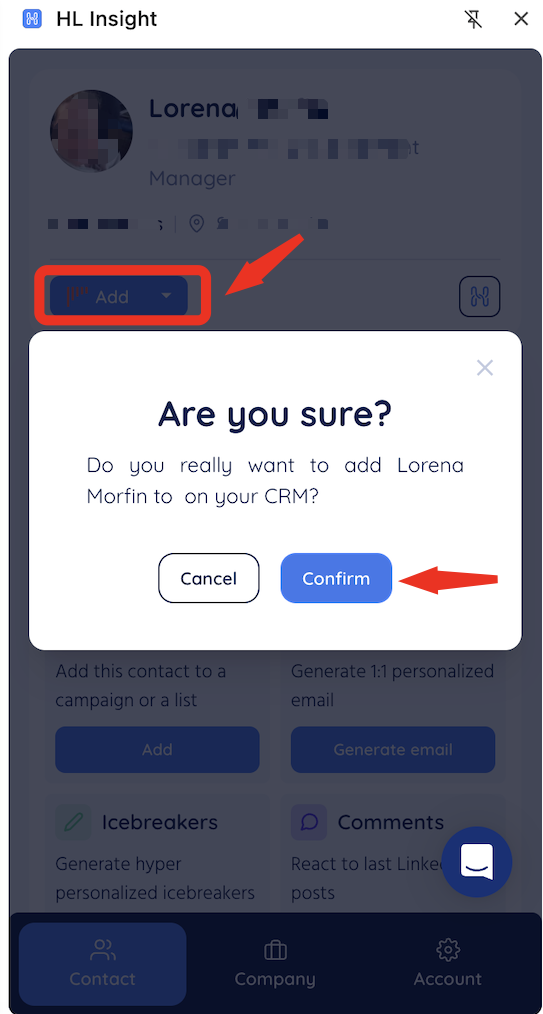
Click Add.
In the Are you sure? window, click Confirm.
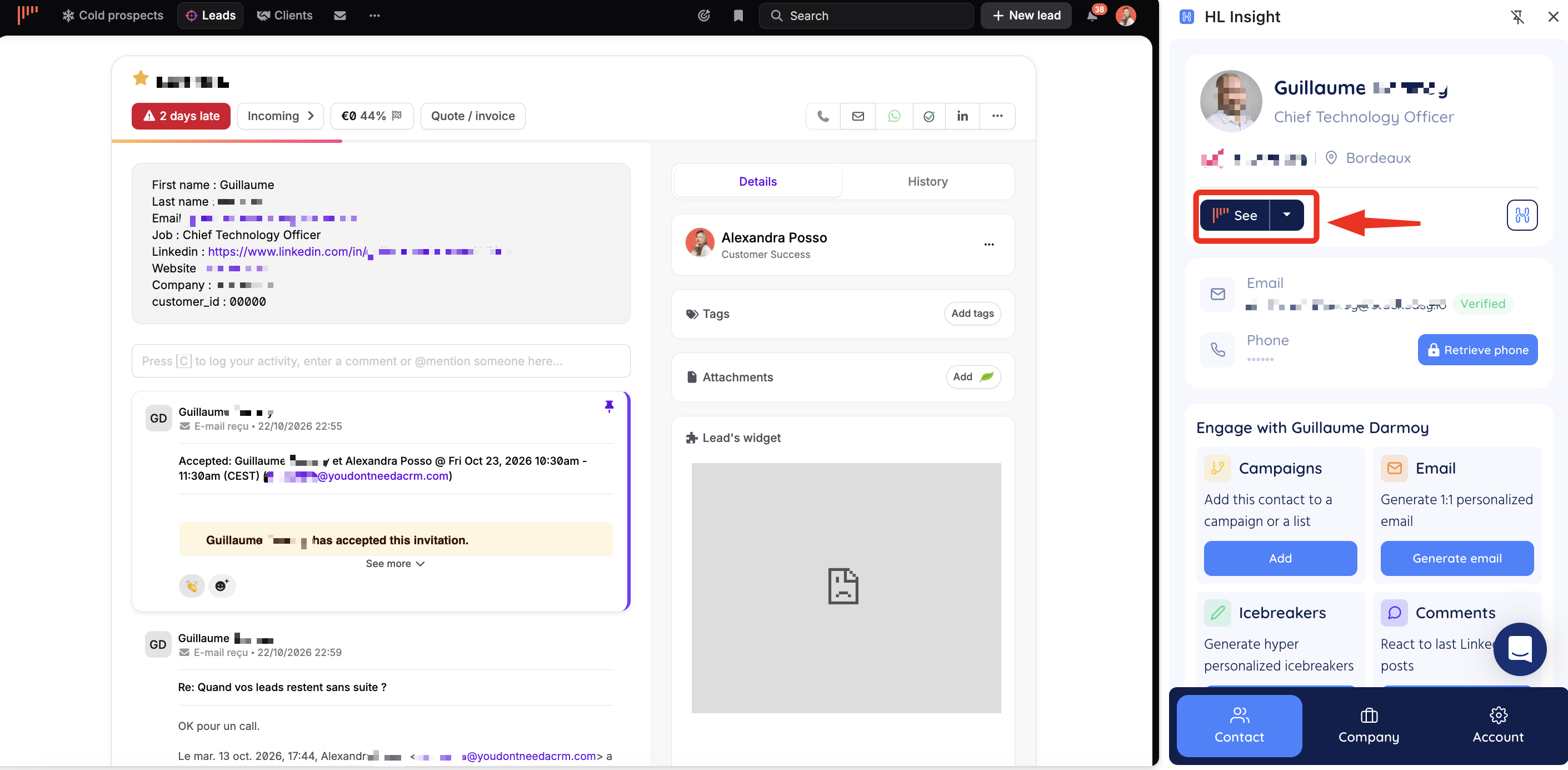
Check the contact details, such as first name, last name, job title, country, phone and your custom fields.
What you should see: a Successfully updated! message, the Add button becomes See, and the lead appears in noCRM with the contact's LinkedIn profile, website and company.
To re-engage noCRM leads with a sequence, follow these steps:
In Humanlinker, open your campaign and go to the Contacts step.
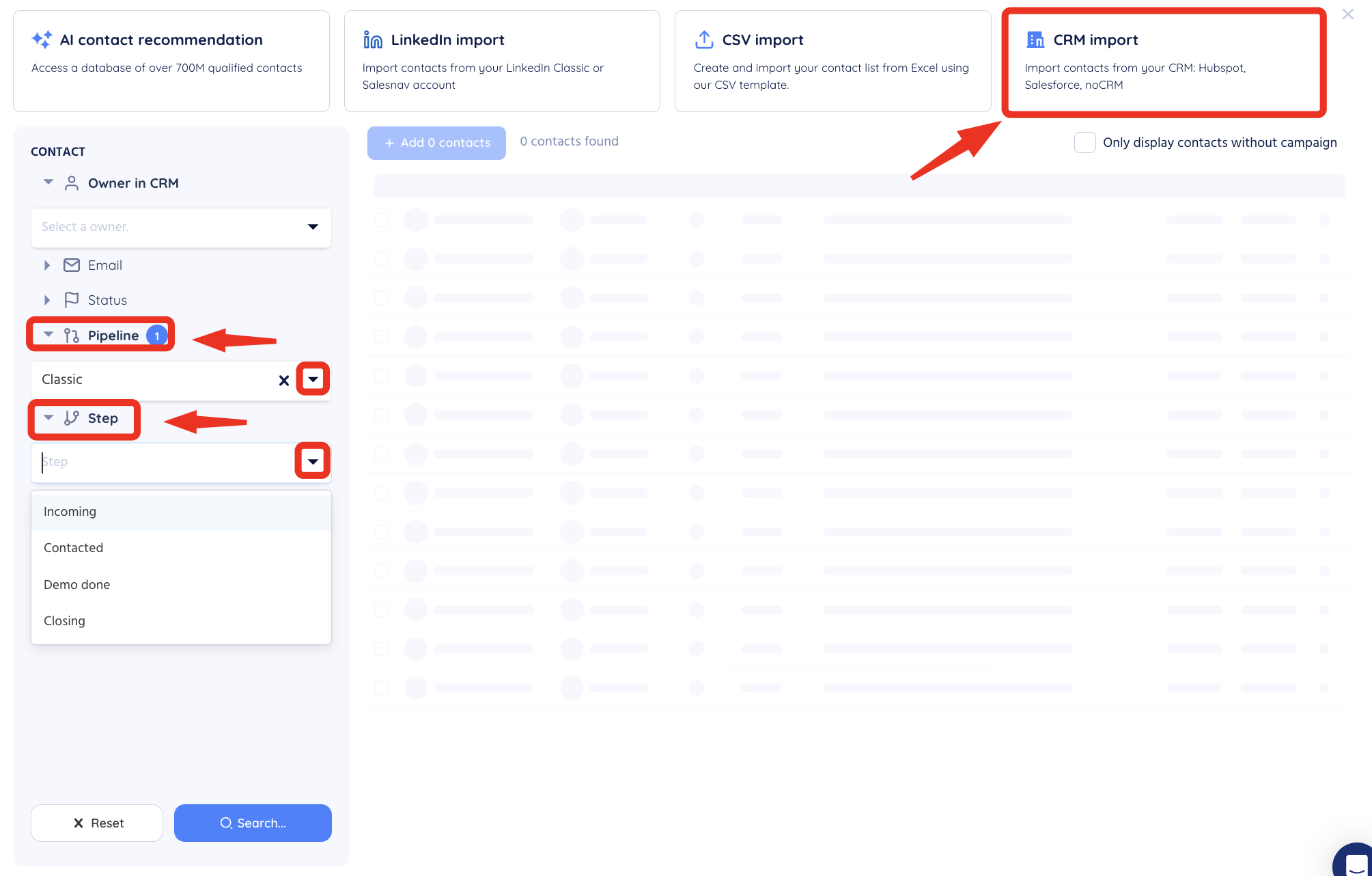
Click Import contacts, then Import CRM.
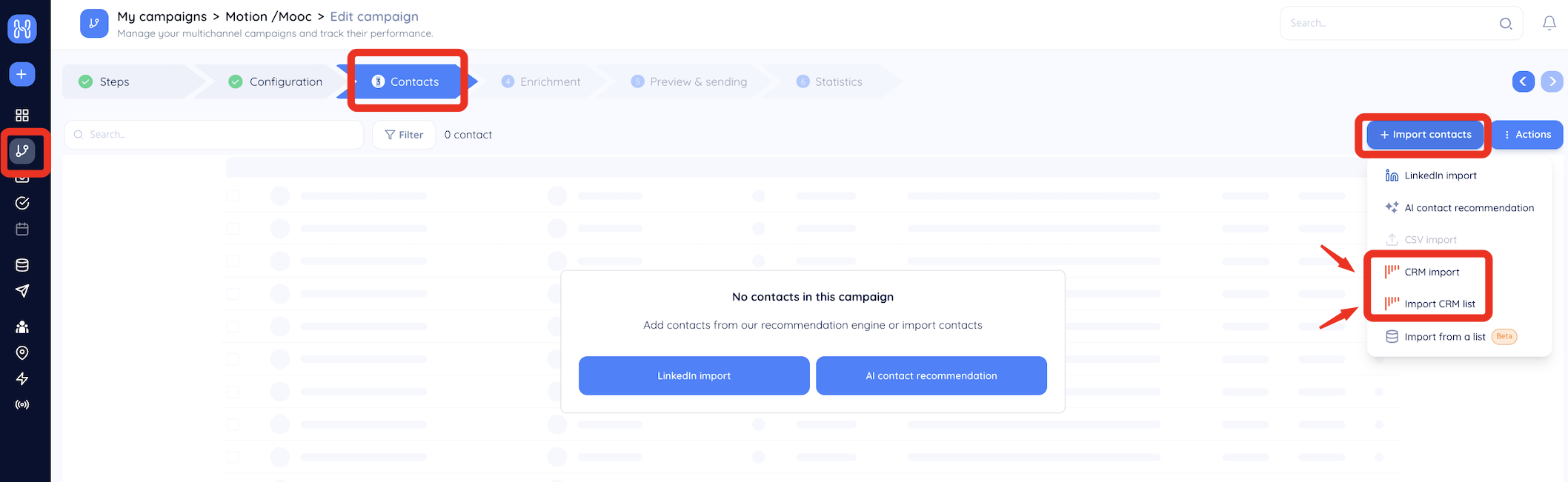
Filter the leads, for example by CRM owner, and select the ones to add.
Click Add contacts.
Check the contacts, then click Continue.
Choose the processing options, then click Add to campaign.
To re-engage noCRM prospects with a sequence, follow these steps:
In Humanlinker, open your campaign and go to the Contacts step.
Click Create new List, then Import CRM List.
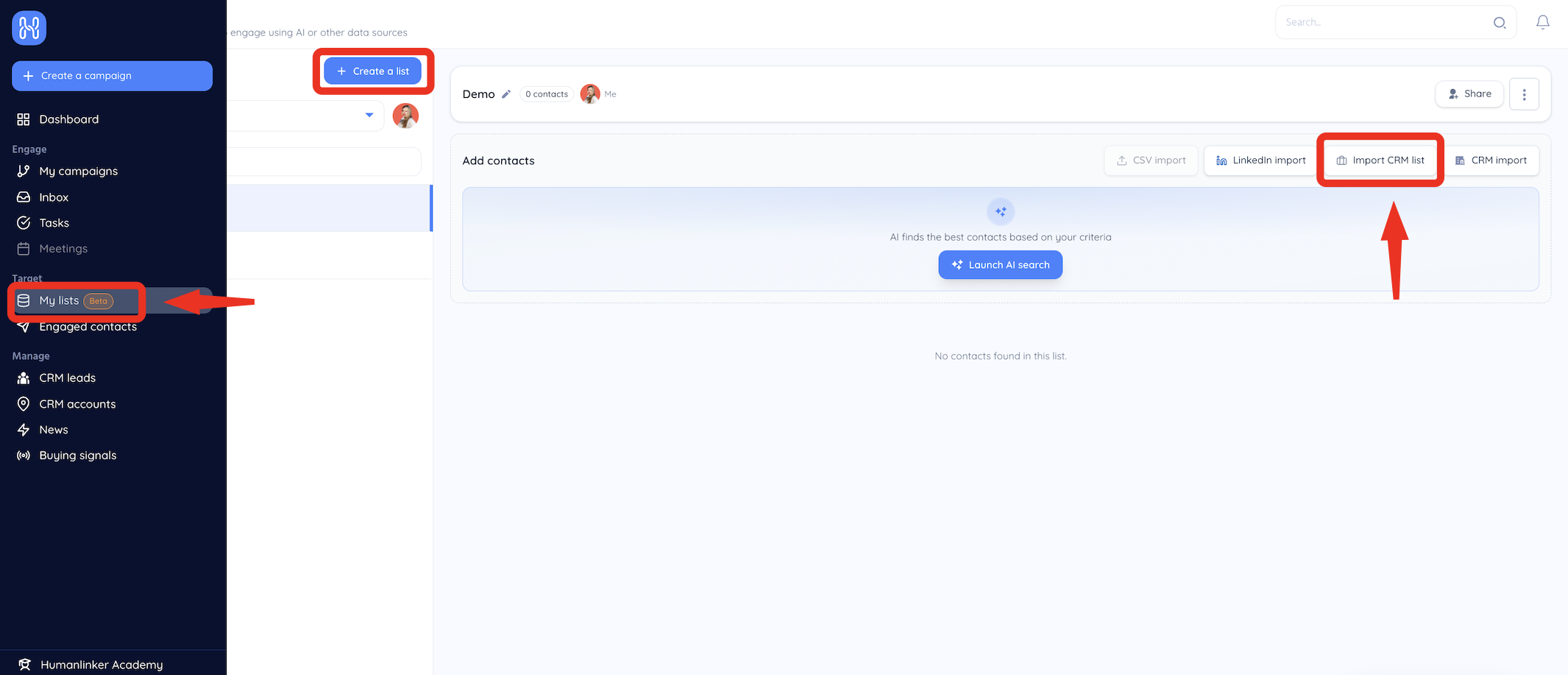
Select the noCRM prospecting List and map all the fields
Choose the processing options, then click Add to campaign.
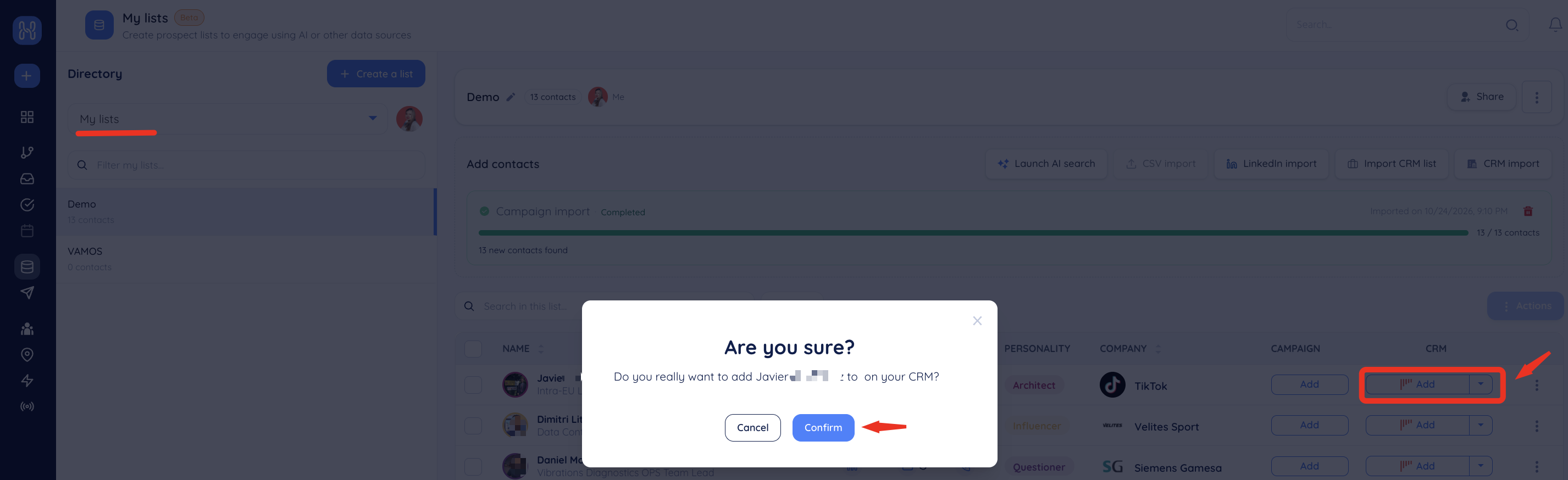
You can create noCRM leads or prospects directly from your Humanlinker contacts, either one at a time or in bulk.
Manually
With the +add button it creates leads in the default pipeline
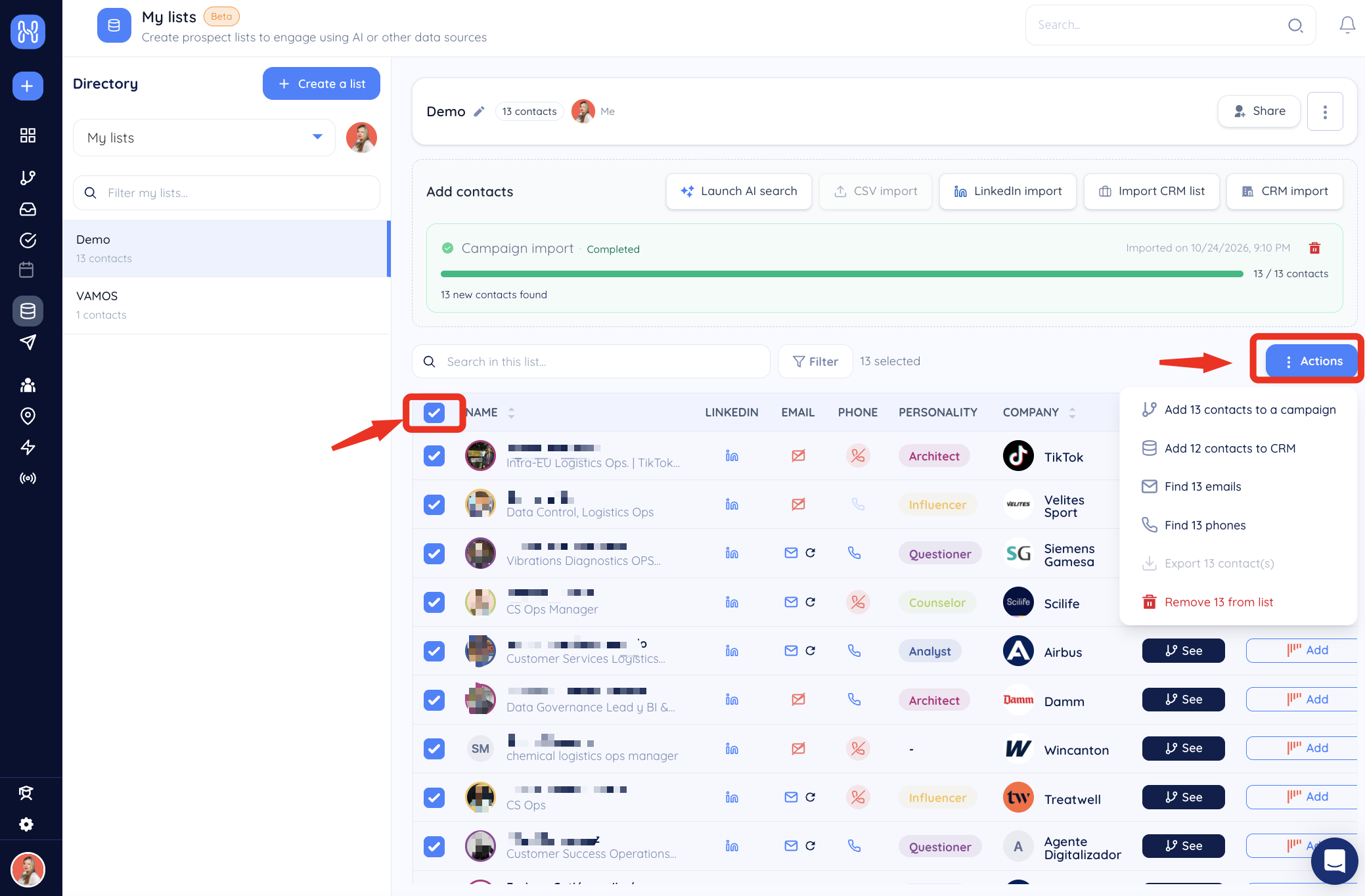
In bulk:
By selecting several contacts in bulk it creates a new prospecting list or feeds an existing one
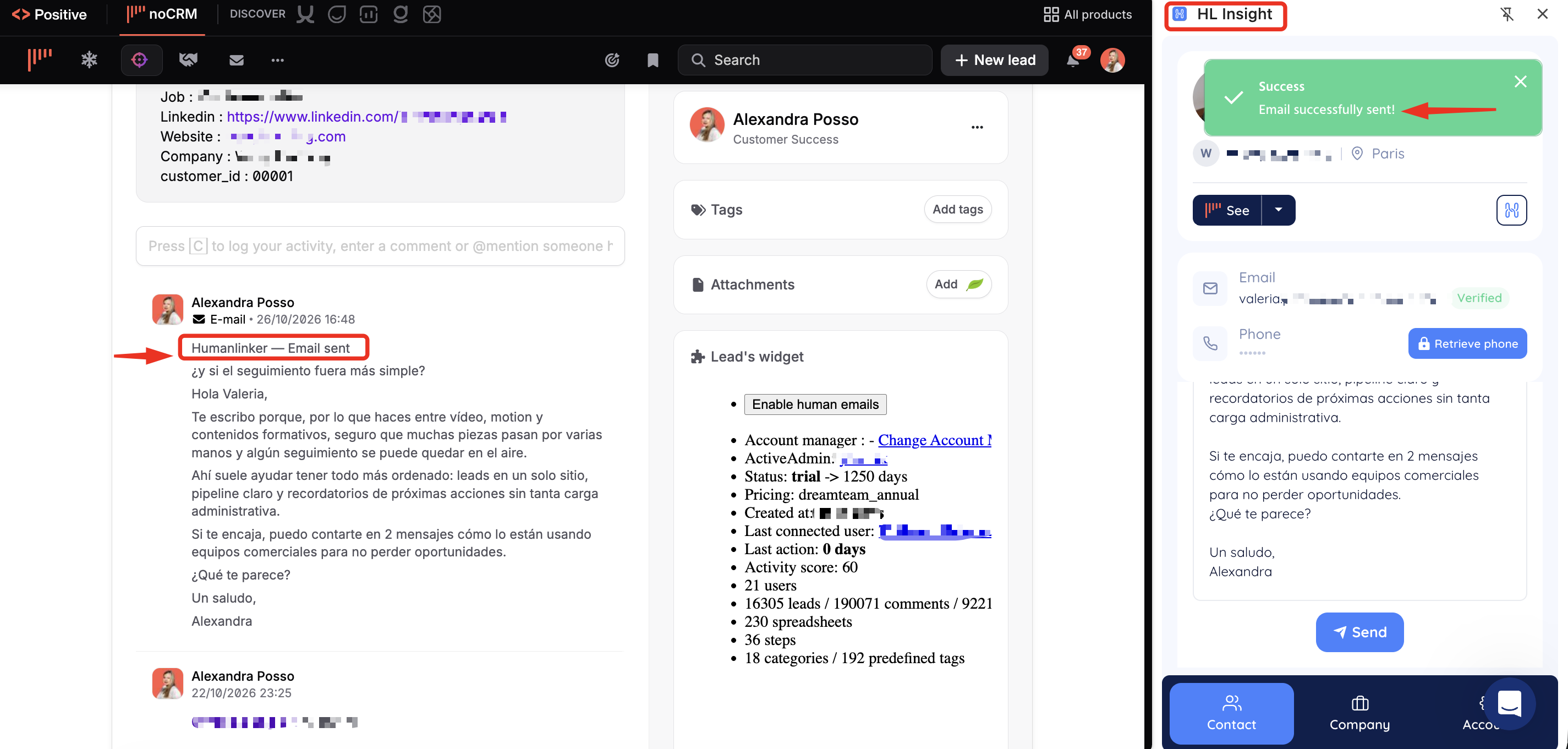
Once a sequence is launched, Humanlinker logs the activities in noCRM as activities on the lead, depending on your settings inside Humanlinker: LinkedIn invitations sent and accepted, LinkedIn messages sent and received, emails sent and received, post comments, and tasks once completed.
Humanlinker can launch sequences based on the pipeline step of your noCRM leads.
In the left panel, expand Pipeline and choose your pipeline. The available pipelines depend on your noCRM account, for example: Classic, Commercial partners, Customer Success (upsell / retention), Onboarding, Partners Certification, Saas partner.
Expand Step and choose the step. The steps depend on your pipeline, for example for Classic: Incoming, Contacted, Demo done, Closing.