Has your lead entered the proposal stage? Do you need to send a customizable proposal template? Stop jumping back and forth from one app to another and create a manual trigger to send a template proposal for you. By automating part of the process, you can enhance your sales team efficiency.
A manual trigger allows you to manually trigger the workflow/task you want Zapier to execute in the same or another app directly from your lead’s Actions menu.
Manually select which lead you want to send a proposal to and hit the send button from noCRM; Ensure your proposal includes all the custom variables of your lead including their full name, company name, amount proposed, and any other information you need to plug in; Automatically attach your sent proposal to the lead; Log the activity automatically on the lead.
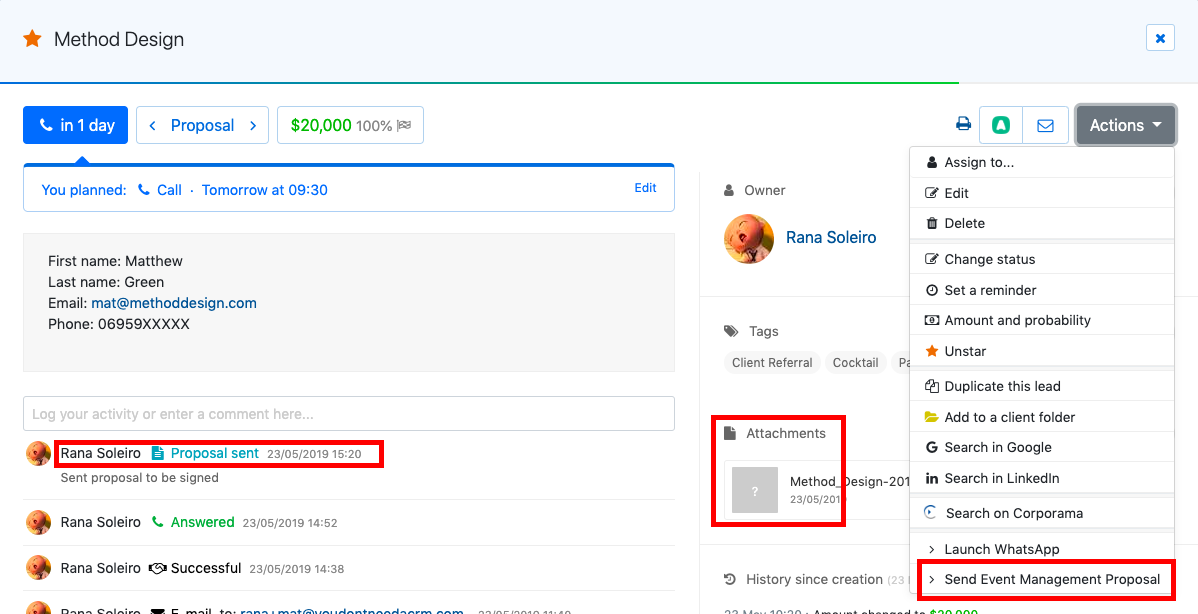
Find out more about what you can do with the lead Actions menu here.
All you need to set it up are PandaDoc, noCRM.io, and Zapier accounts.
If you don’t have an account with noCRM.io, click here to start a FREE trial.
If you don't have an account with Zapier, click here to sign up for a FREE trial.
If you don't have an account with PandaDoc, click here to sign up for a FREE trial.
Set up your TRIGGER: Send Template Proposal Manual Action Set up your ACTION: Create PandaDoc Document Set up your second ACTION: Find the lead Set up your third ACTION: Add Attachment Set up your fourth ACTION: Log the Activity
Sign into your Zapier account and click on the MAKE A ZAP! button at the very top where you will be directed to a new page:
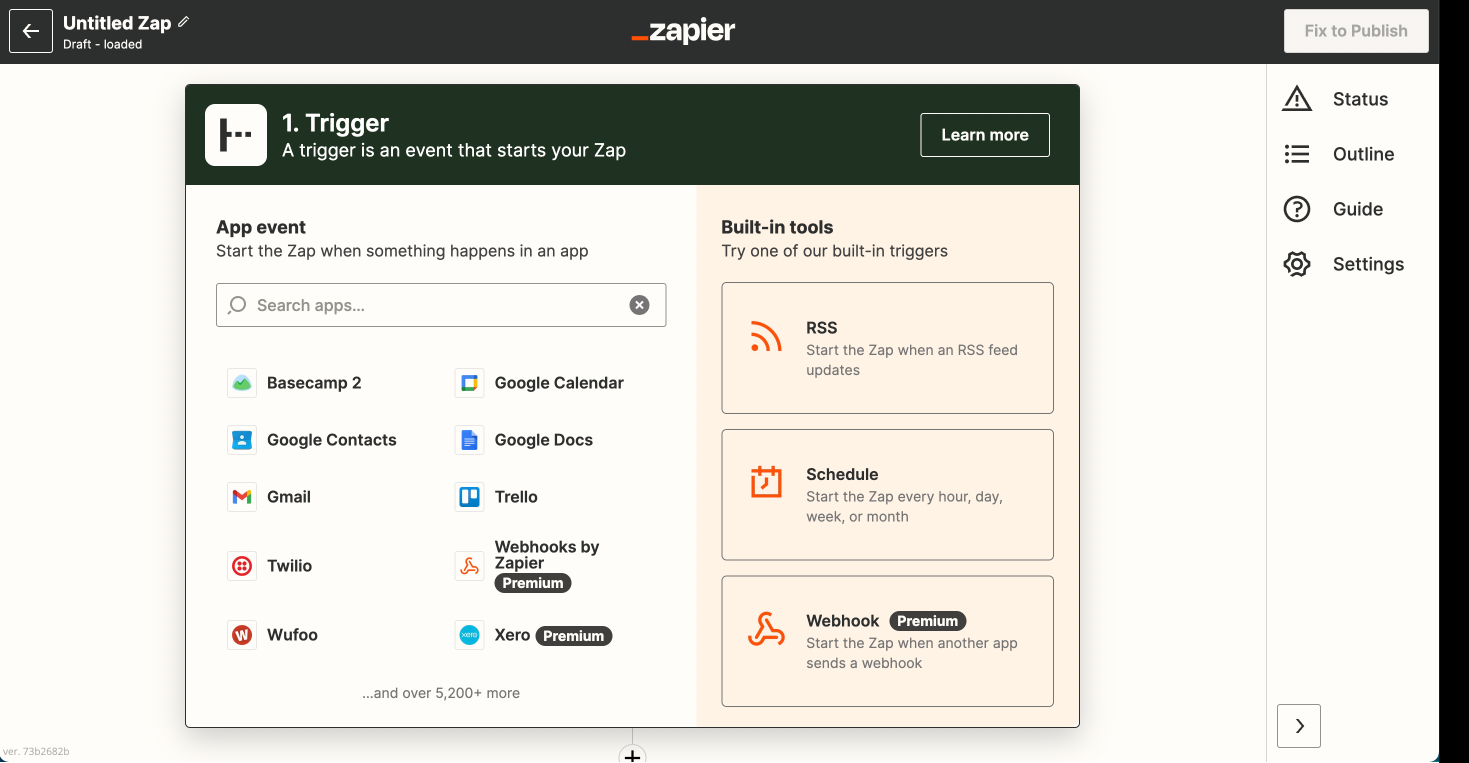
1. Choose the Trigger App: noCRM.io
2. Choose the Trigger: New Manual Trigger
3. Connect Zapier to your noCRM.io account if you haven’t already by
Entering your slug/account name (https://ACCOUNT.nocrm.io)
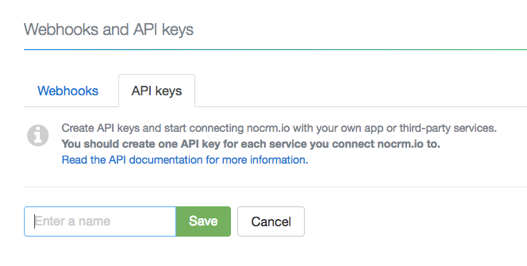
Entering your API Key (Go to your nocrm.io account Admin Panel, select Webhooks and API, API Keys then click on the Create an API Key button and name it.)
4. Name your Event— This will be the name of the trigger in the Actions menu
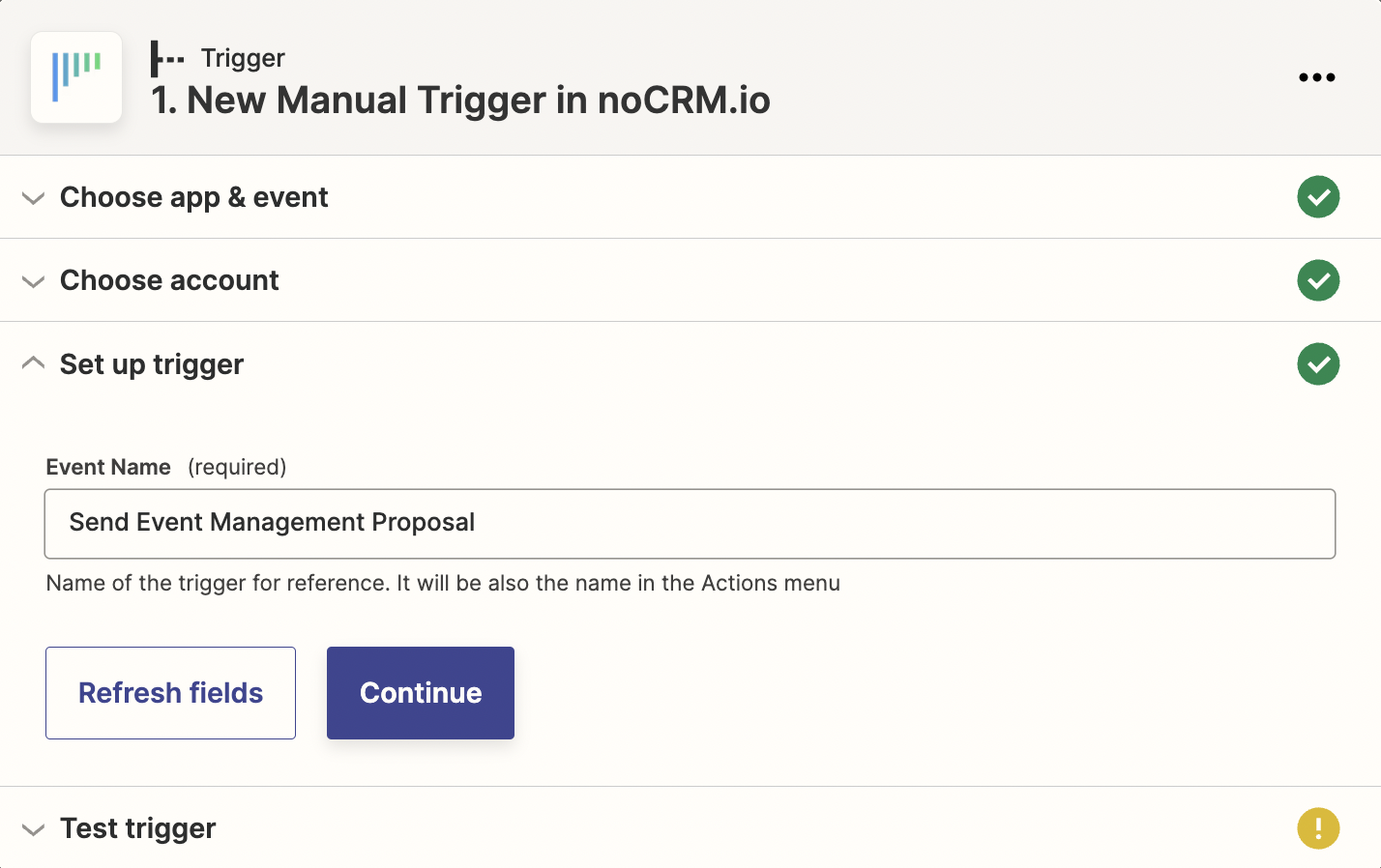
5. Fetch & Continue. Make sure you have a recent lead created in your noCRM.io account
1. Choose an Action App: PandaDoc
2. Choose an Action: Create Document
3. Connect Zapier to your PandaDoc account
4. Edit Template to set up your PandaDoc template document
Based on the lead you tested earlier, select the fields you want to plug into your template document
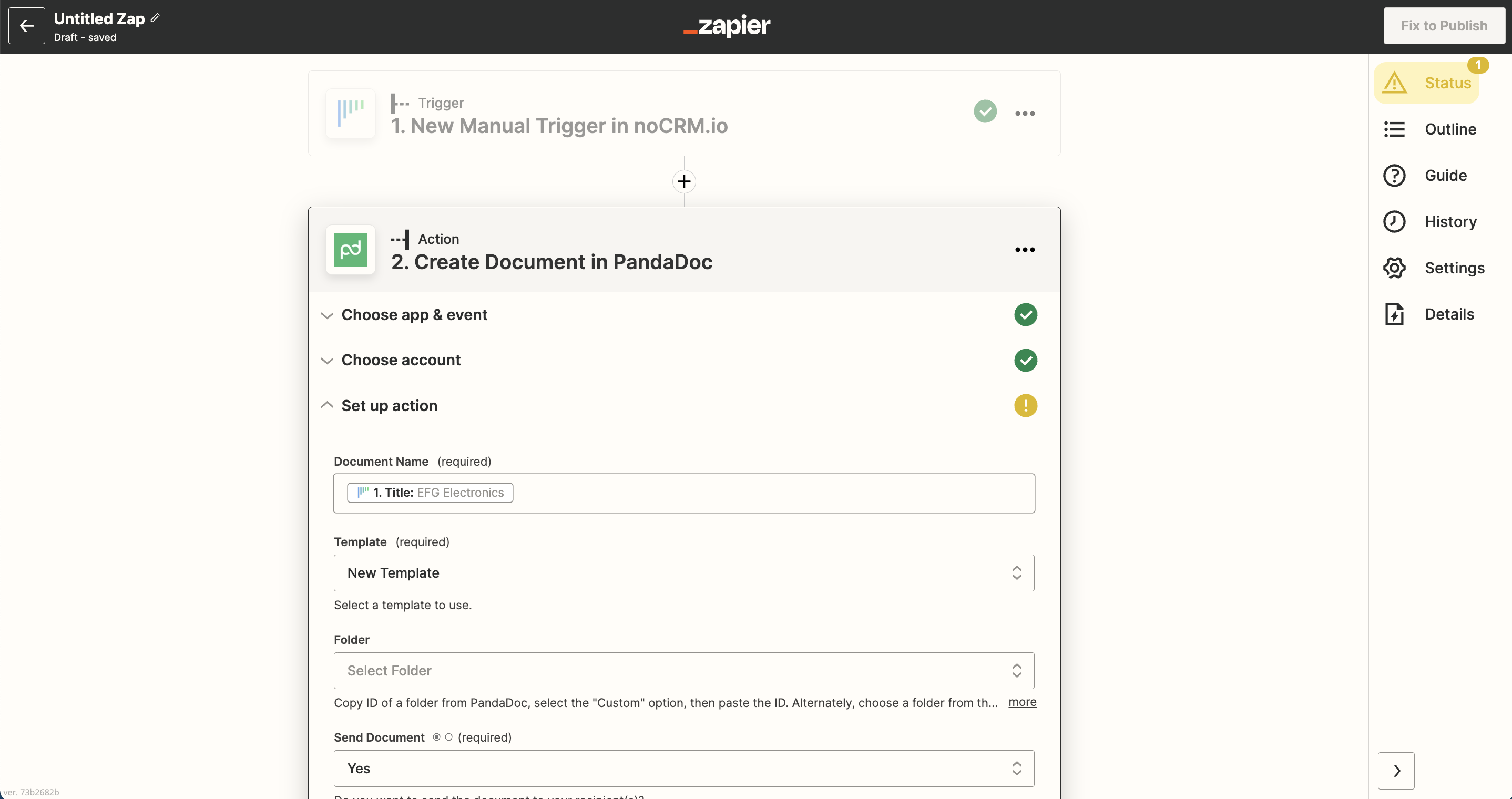
5. Test the step and the Action set up is finished!
1. Choose an Action App: noCRM.io
2. Choose an Action: Find Lead
3. Based on the lead retrieved in the first step, the trigger phase, select the email address of the lead.
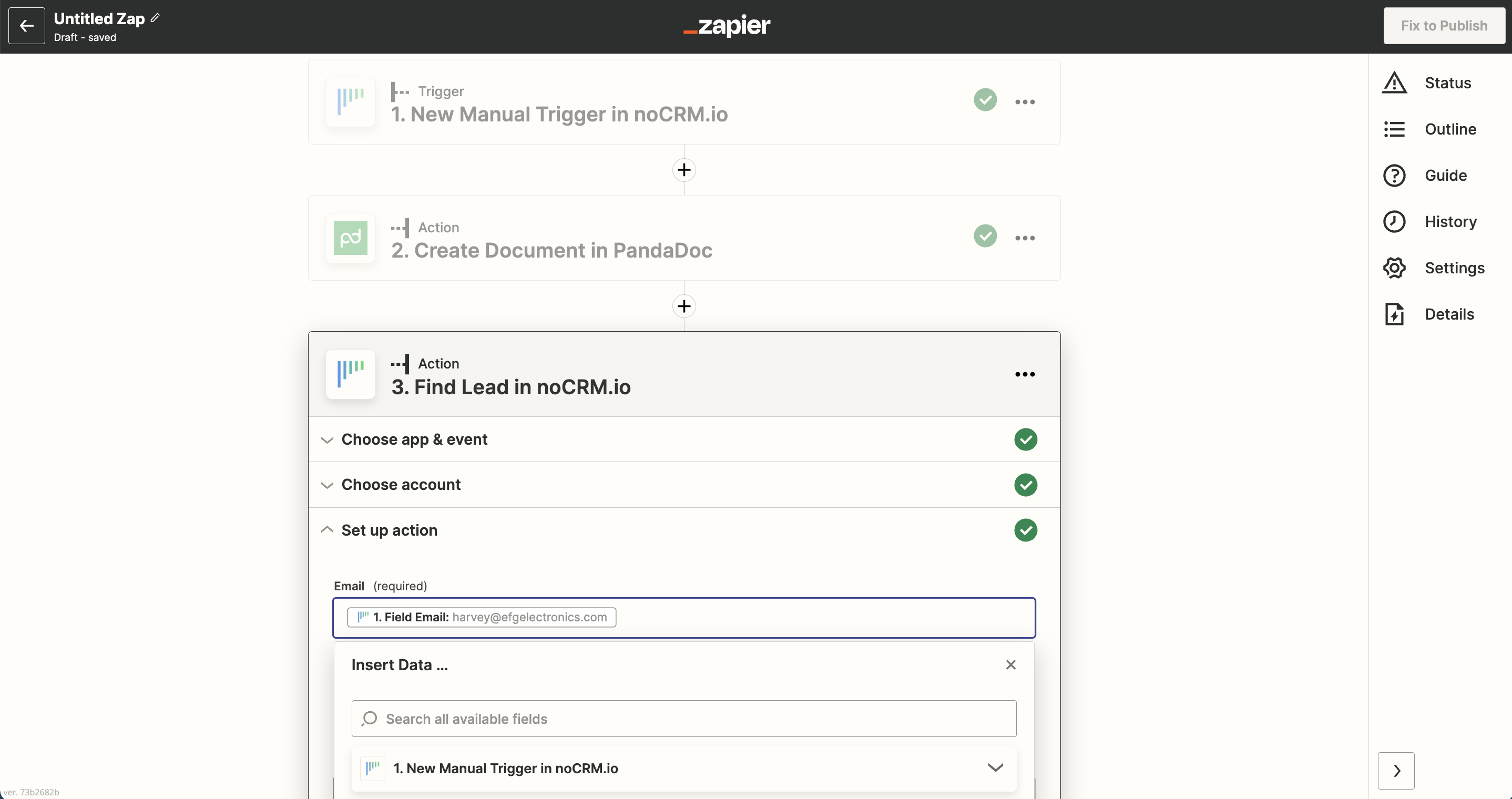
4. Test the step and click on the "Add a step" button
1. Choose an Action App: noCRM.io
2. Choose an Action: Add Attachment
3. Connect Zapier to your noCRM.io account which you've already done in the first step
4. Choose the option "Use a Custom Value (advanced)" to fill the Lead field.
5. Select the lead's email address from Step 3
6. Based on the details Zapier retrieved from the PandaDoc created document, select the attachment name and the attached file.
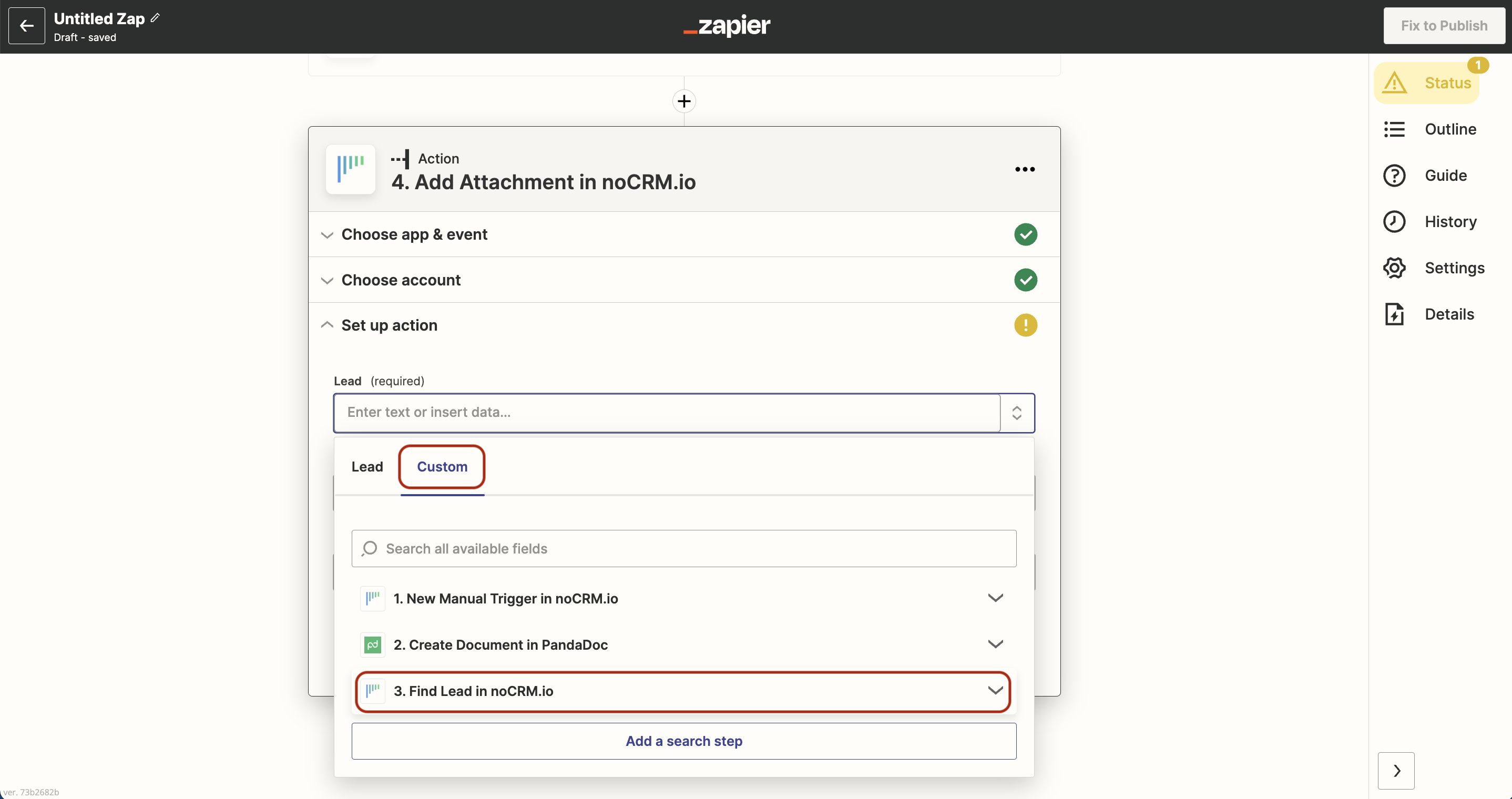
7. Test the step and the Action set up is finished!
1. Choose an Action App: noCRM.io
2. Choose an Action: Log an Activity
3. Connect Zapier to your noCRM.io account which you've already done in the first step
4. Edit Template to set up your Activity
Based on the list of activities and outcomes you've created in your noCRM.io account, select the activity/outcome desired. In this case, we've created a new activity named "`Proposal Sent"
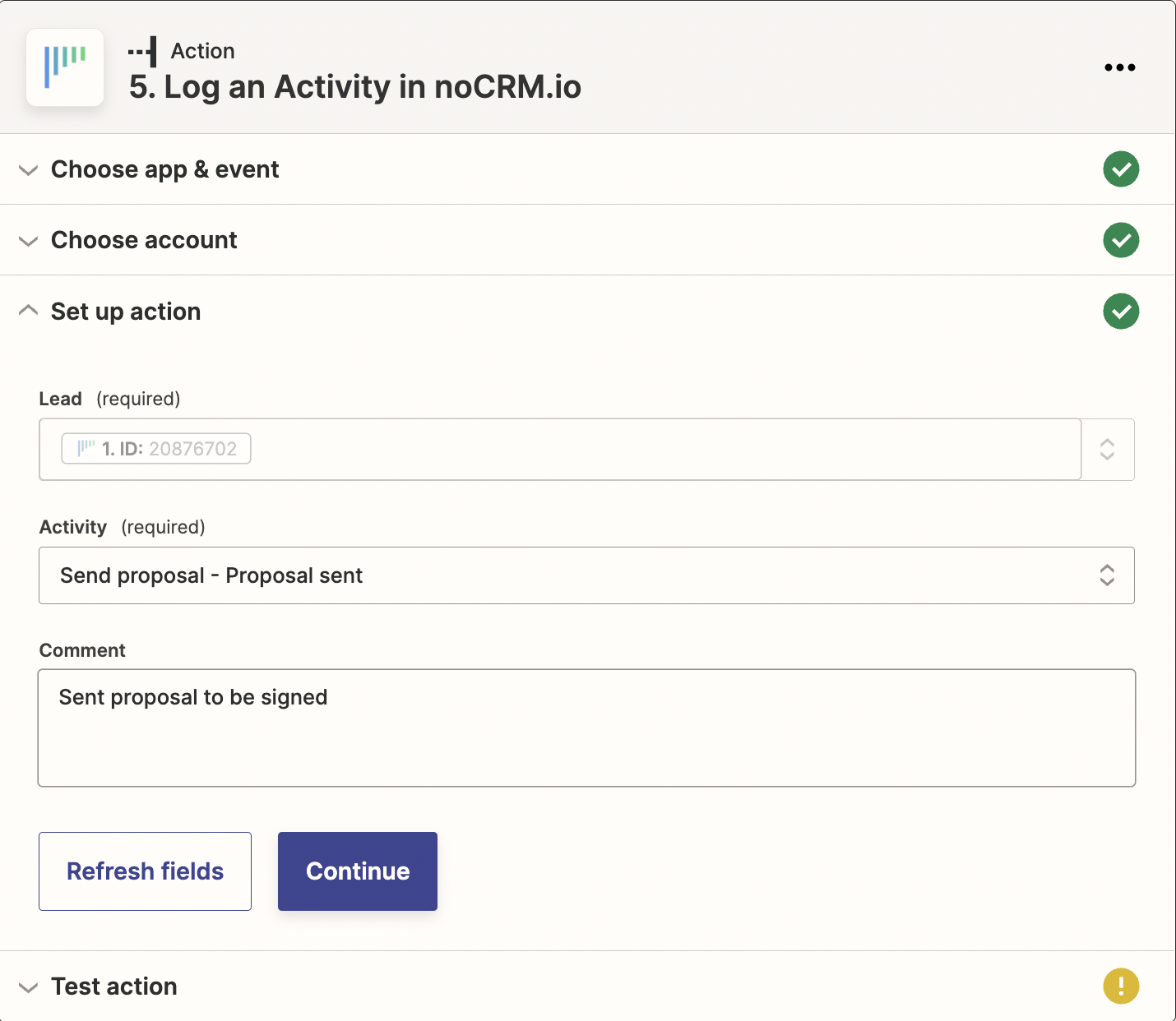
5. Test the step and the Action set up is finished!
