noCRM helps you close deals faster and manage your sales process efficiently. Once a lead is won, a project often starts and needs to be followed up. The post-sales process lets you manage the tasks to complete after closing a deal, such as invoicing or signing a contract.

A post-sales process is a group of tasks to handle after a lead is won, lost or cancelled.
When you set a lead's status to Won: if you selected Ask me if I want to create post-sales tasks each time I set a lead's status to WON in your profile, under Settings and preferences > Other settings, noCRM asks you if you need to create tasks to follow up on this win. Click Add post-sales tasks.
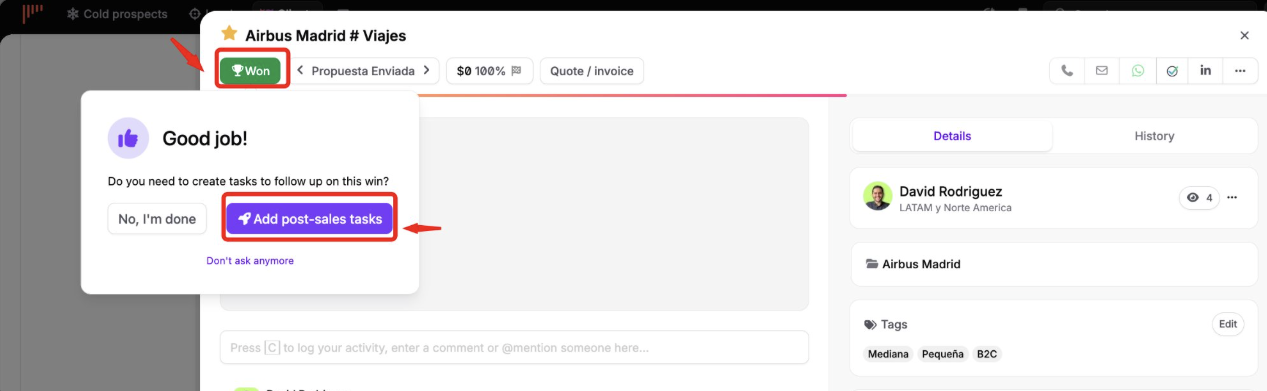
Then fill in the post-sales process form:
To use a template, click Pre fill from a template and select it.
Enter the Process name and select the user in Assign to....
Add a Description and the Tasks. Click Add a task to add more tasks, and click the clock icon next to a task to set a reminder.
If needed, click Add tags to add tags to the process.
Click Add tasks to lead.
Since the process after a sale is often the same, admins can create templates so that you don't have to create the same tasks manually every time. Follow these steps:
Click your avatar at the top right.
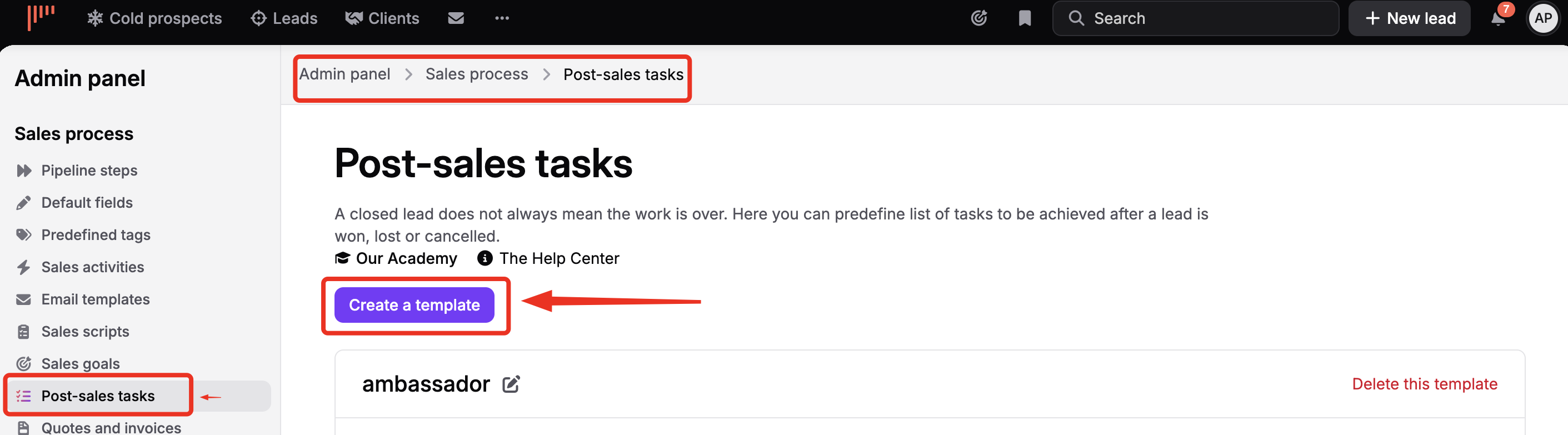
Go to Admin panel > Sales process > Post-sales tasks.
Click Create a template, name it and add its tasks. For each task, you can set a default reminder, for example a reminder 1 day after the post-sales process is created.

Your post-sales processes are available in the Clients section, on the Post-sales processes page. As for your leads, noCRM shows the number of post-sales processes with active tasks, including the tasks you need to handle in other users' processes.
For each post-sales process, the list shows the lead, the progress and the owner. You can display or hide the tasks with the Hide all tasks menu, sort the list, for example by Last update, and export it with Export.
When you open a lead that has a post-sales process, a rocket icon appears on the right with the name of the process and the number of completed tasks out of the total.
When a task is done, check its box. You can also set a reminder for a task and leave it on standby until then. You are notified when it is time to handle it, and if you set a time, the reminder also appears in your calendar.
You can assign a whole post-sales process or individual tasks to other users. To assign a process when you create it, select the user in Assign to....

To delete a whole post-sales process, open the lead, click the post-sales process, then click Delete at the top right.
To delete a task, open the post-sales process and click the trash icon next to the task.
If you can't delete these items, contact your account admin: they may not have allowed you to delete items in noCRM.
In the Filters panel on the right, you can filter post-sales processes by:
Status, for example To do.
Users, to filter by owner.
Step, to see the post-sales processes linked to leads in a specific pipeline step.
Tags.
Date, to filter by date range.
Post-sales tasks can't be filtered.
A post-sales process has the To do status as soon as at least one of its tasks is to do. For example, if a process contains a task done, a task to do and a task on standby, its status is To do: it appears when you filter on To do, but not when you filter on Standby.
To reuse the lead's tags automatically, select Use lead tags to pre-fill post-sales process tags in Admin panel > Account management > Preferences.