Client folders group all the leads you have with the same client. They are designed for companies that make more than one sale with the same client, and show at a glance where you stand with each client and how important they are for your company.

You can create a client folder in two ways:
Duplicate an existing lead: noCRM asks you to create a client folder that will contain all the leads with this client. Learn how to duplicate a lead.
From the Clients menu: hover over Clients in the top bar and click New client folder.
Client folders have their own default fields, which admins define in the Admin panel. Learn how to define client folder fields.
To create a new lead in a client folder, open the client folder and click Create new lead at the top of the page.
To add an existing lead, open the lead, click the Actions menu and select Attach to a Client Folder. Search for the client folder or create a new one.
The Clients section gives you an overview of all your client folders: the number of leads in each folder, their statuses, their value and their owners.
You can filter your client folders:
By status (active or inactive).
By type of leads (with or without active leads).
By owner of the client folder.
By tags (with or without a given tag).
When you open a client folder, you see all the leads you manage or have managed with this client. On the right, you see how long you have been working with this client and how much you have made with them.
If you lose a client, you can deactivate their client folder.
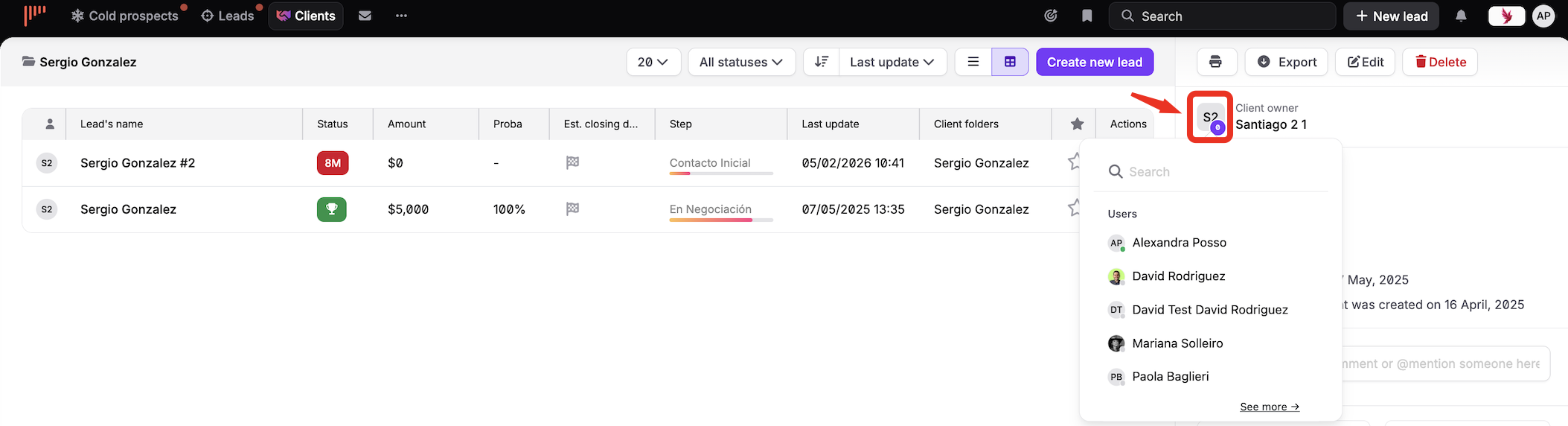
You may need to reassign a client folder, for example when a new user takes over existing clients or when a user leaves the company. Follow these steps:
Open the client folder.
On the right, click the avatar of the Client owner.
Select the new owner.


Follow these steps:
Open the lead.
Click the Actions menu and select Remove from client folder.
Click the Actions menu again and select Add to client folder.
Search for the client folder you want or create a new one.
If you lost a lead or a client in the past and can now win them back, duplicate the lead. The client folder then contains the lost lead and the new one.
Admins choose whether client folders are shared between all users or whether each user has their own client folders. Follow these steps:
Click your avatar at the top right.
Go to Admin panel > Account management > Privacy and security > Roles and privacy settings.
Set the Client folders sharing option.
To export your client folders, read this article.