When you create a prospecting list, whatever your edition, a wizard lets you choose the name of the columns before you start.
This works when you create a prospecting list manually and when you import an existing Excel or CSV file. An imported CSV file can contain up to 26 columns and 5,000 rows.
When you import a file, you can also exclude columns and match them with your default fields, such as Name, Last name or Email, but also Amount, Tags, Probability, Step, a predefined category or the estimated closing date. Your prospecting list is then correctly set up and fits the rest of your prospecting organization.
Prospecting lists are online spreadsheets that let you:
Turn rows into leads in a single click.
Assign leads to other users when you create them.
Edit the content.
Sort columns.
Insert or delete rows and columns by right-clicking the header of the row or column.
Deactivate rows when a contact is not interested.
Call contacts with click-to-call.
Email a contact with the Bcc feature.
Name the columns according to your lead structure.
Name the columns according to tags, amount, probability or estimated closing date.

Discover the advanced prospecting lists features.
To turn a row into a lead, click the [+] button (Create a lead with this row) on the left of the row.
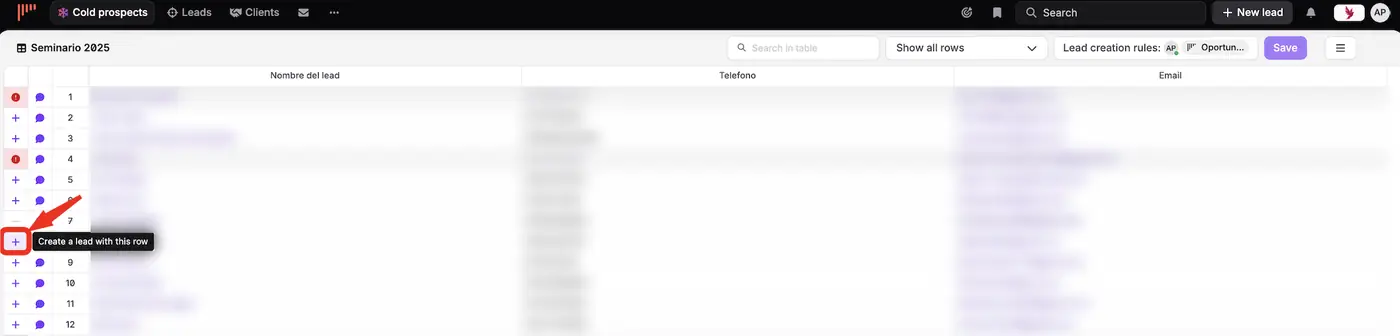
Once the lead is created, the row is independent from the lead: if you update the lead, the row in the prospecting list isn't updated. You can still see the status of the corresponding lead in the list.

When you create a lead from a row, choose the user it is assigned to. You can also create it unassigned.
Always use the first column for the lead's name. When you create a list from scratch, it has the same columns as your default lead fields. You can edit them, but keeping these fields gives you more complete exports of your leads.
To rename a column:
Right-click the grey area next to the name of the column.
Select Edit header.
Type a new name, or choose a default field or another lead option.
Learn more about the advanced features of prospecting lists.
Use the search engine of the list to find prospects: type your search and press Enter. You can then manage your prospects' information in a pop-up form.
Your list is saved automatically every minute. If some changes aren't saved yet, they are counted and noCRM asks you to save them before you leave the page.
You can set the privacy of a prospecting list when you import it or later. The available options depend on your privacy settings:
By default, a new prospecting list is only available to you, and to the members of your default team if you belong to a team.
You can share it with the whole company with Accessible by Everybody.
To change the privacy of a prospecting list:
Open the prospecting list and click the icon at the top right.
Click Edit details and change who can access it.
To import a prospecting list for another user, import it for yourself first, then reassign it:
Open the prospecting list and click the icon at the top right.
Click Re-assign and select the user.
To change its privacy, click the icon at the top right again, then Edit details.

To lock the columns, click the icon at the top right of the list and turn on Lock columns.
To move a column, copy and paste its content with Ctrl+C and Ctrl+V and your mouse. It is easier to do before you start working on the list, that is, before you create leads.
Some actions aren't available in prospecting lists:
Importing a file into an existing list. To keep feeding a list with new prospects, copy and paste them into it.
Importing contacts from Outlook or other services. Only Google contacts can be imported.
Moving a prospect from one list to another. Copy and paste the row into the other list, then delete it from the first one.
Dragging columns to another position. Edit the original file and import it again, or add a column, copy and paste the content and delete the old column.
Setting reminders. To call someone back later, create a lead.
Merging two prospecting lists.